
Building and operating an AI application
I built Gaia for UBITECH. It is UBITECH's enterprise agentic AI platform and intellectual property. My work connects product direction and customer requirements with the architecture and implementation of the shared platform.
Gaia brings the parts of an AI application into one working environment: agent behavior, tools, documents, structured data, user interfaces, human decisions, evaluation, and delivery. A team can configure an assistant, put it in front of users, inspect what happened, and use that evidence to improve the application. The official platform overview describes this connection between design, operation, and governance.
The walkthrough below shows how those parts fit together in the product I built. Screenshots come from Gaia's visual platform guide and an additional entity visualization capture, using a demonstration workspace in versions 3.2.105–3.2.106. The agent workflow graph was captured on 6 October 2026; the other images were captured on 5 October. They show product controls and prepared examples; the captions identify draft states and synthetic results. Each image is available here at full size—select it to inspect the interface.
Configuring an agent
An agent has an identity and one or more configurations. The configuration holds the choices that determine its behavior: model, instructions, knowledge attachments, and available capabilities. Separating the agent from its configuration lets a team keep versions of those choices together.
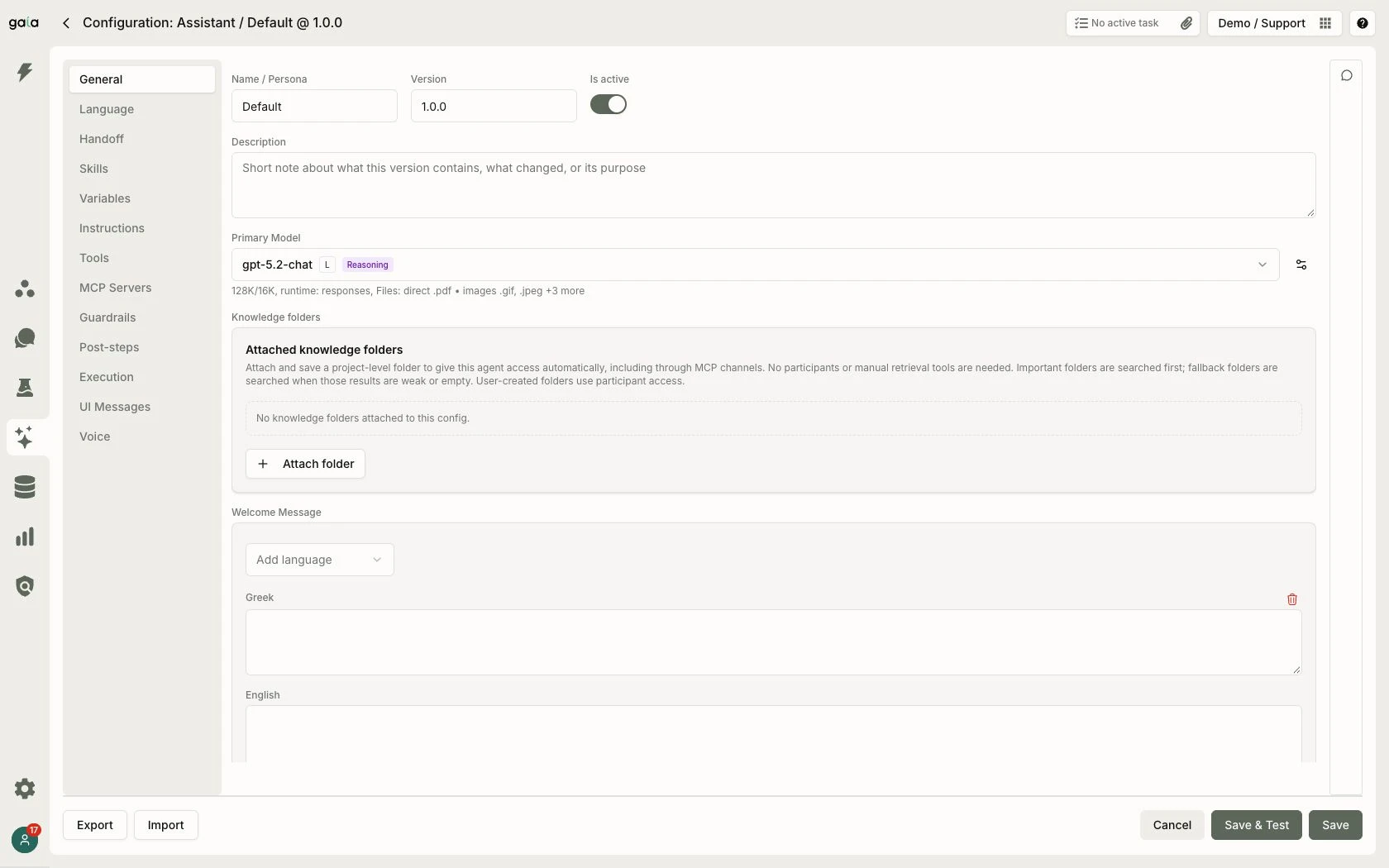
The Assistant configuration. The left-hand tabs separate instructions, tools, MCP servers, guardrails, handoffs, and execution settings. This example has no knowledge folders attached.
Instructions are organized into fragments that can be inspected and edited individually. Tools provide the operations the agent can call. The configuration editor keeps these decisions available for review and provides a Save & Test action alongside ordinary saving.
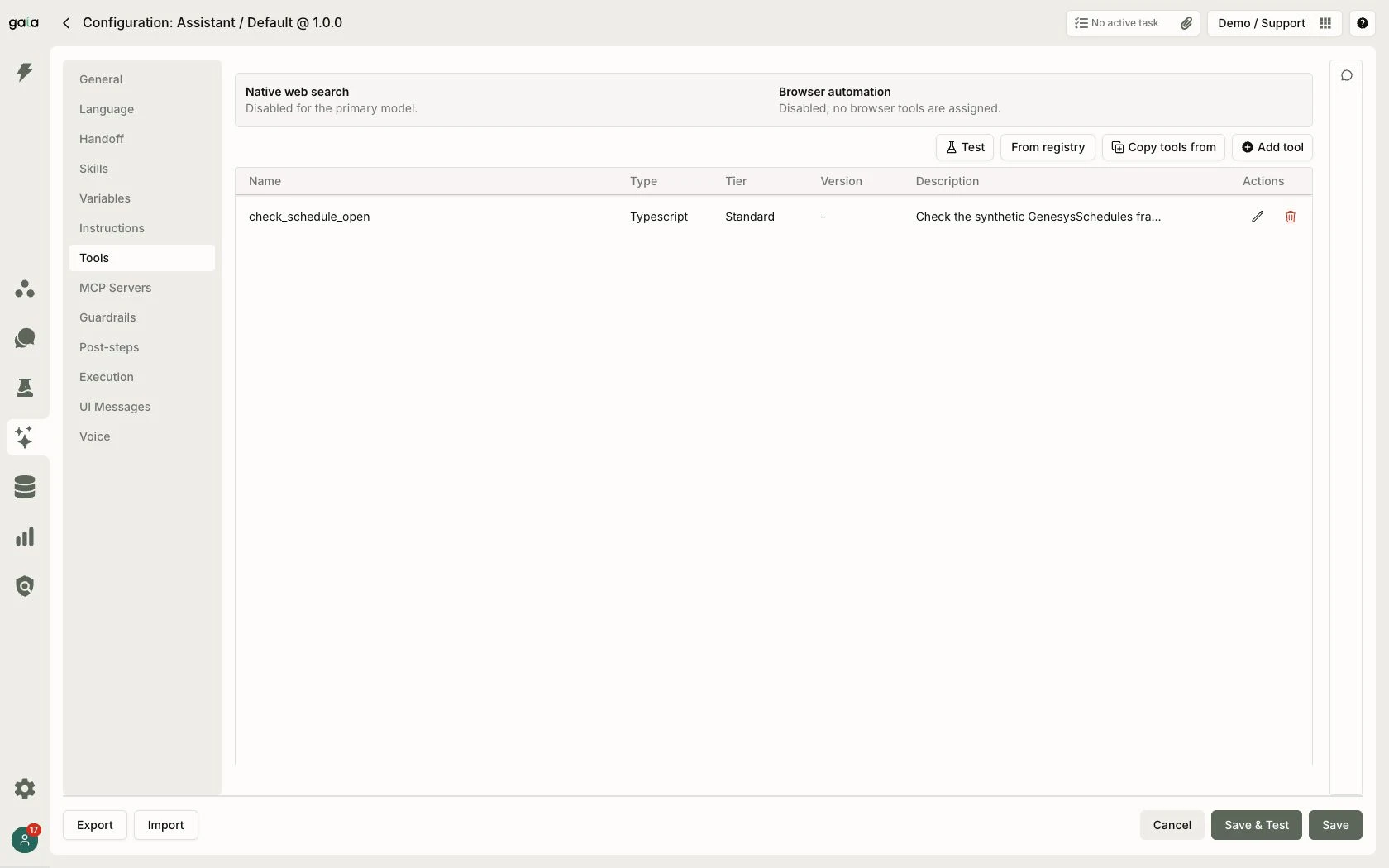
A scheduling tool in the configuration's tool list. The status summaries show that native web search and browser automation are disabled for this example.
This separation is central to the platform's design: choosing a model is one decision within an application whose instructions, operations, context, and interaction with people also need to be explicit.
Turning the agent into a user-facing application
Channels connect agent configurations to the surfaces people use. A project can expose an Assistant or a text chatbot, with its own address, enabled state, and presentation settings. The channel controls the surrounding experience, including appearance and file attachments.
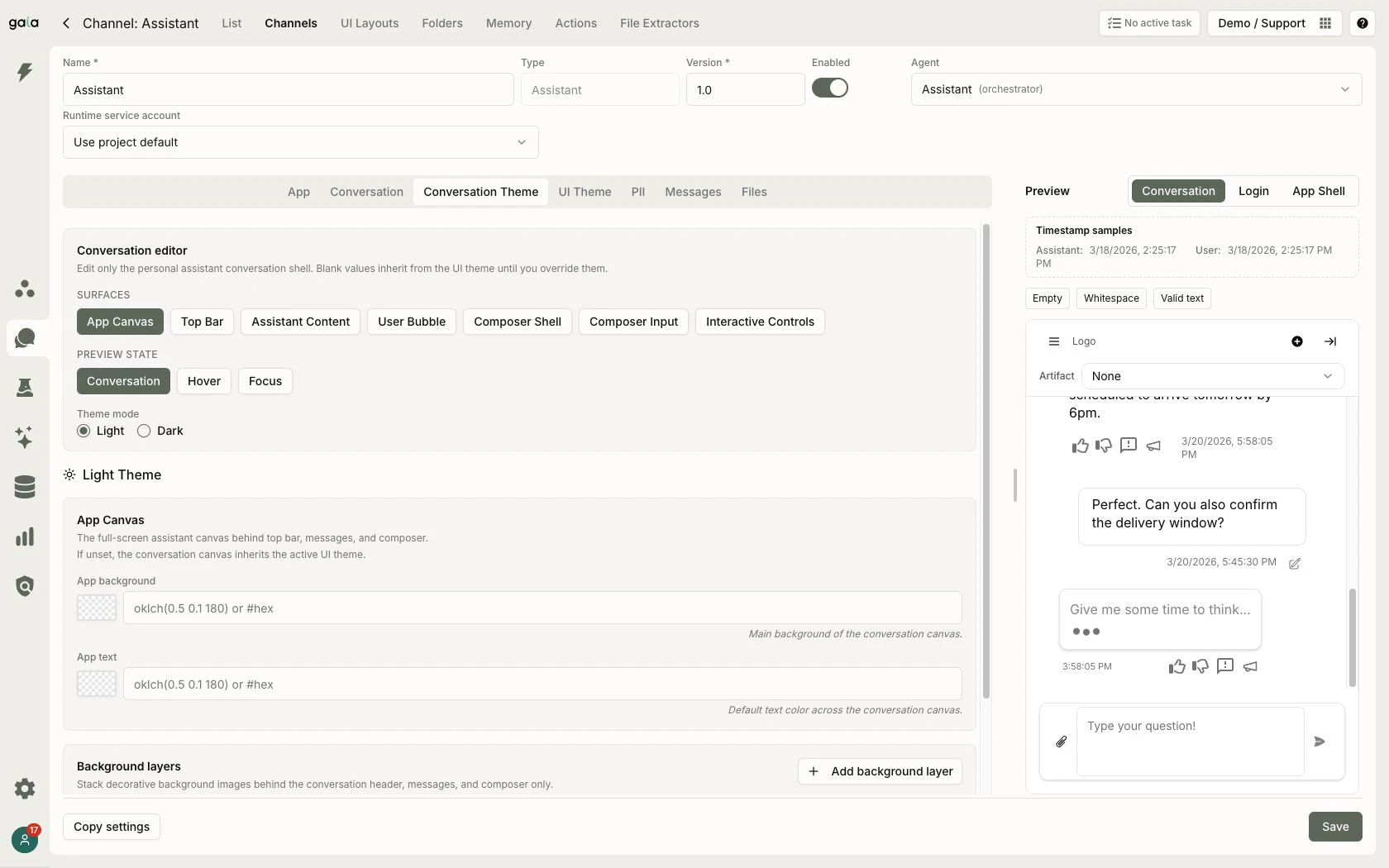
Editing a channel's appearance beside its preview. The preview content illustrates the presentation while the theme is being configured.
The resulting assistant gives users conversation navigation, a message composer, and controls for working with replies. Files, voice, and other interaction options depend on the channel configuration. Reply feedback gives users a way to attach a comment to a particular response.
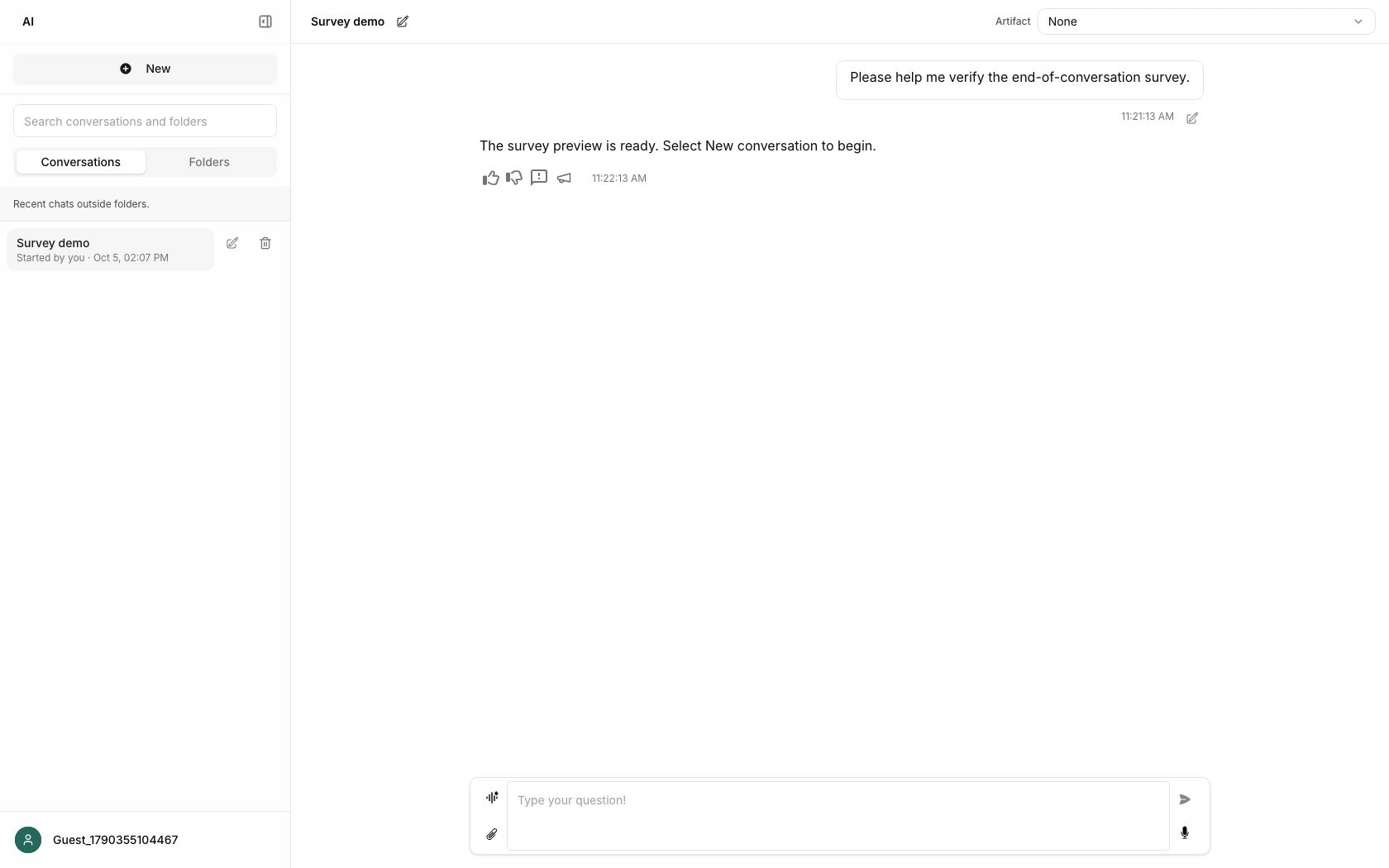
The end-user assistant. This short survey exchange is a prepared example, not a live model response generated during the screenshot capture.
Giving the application knowledge and memory
Document folders connect files, indexing, and conversations. A user can organize a source set, inspect its indexing state, and work with the conversations linked to it. File-level progress helps explain whether a document is ready to use or still being processed.
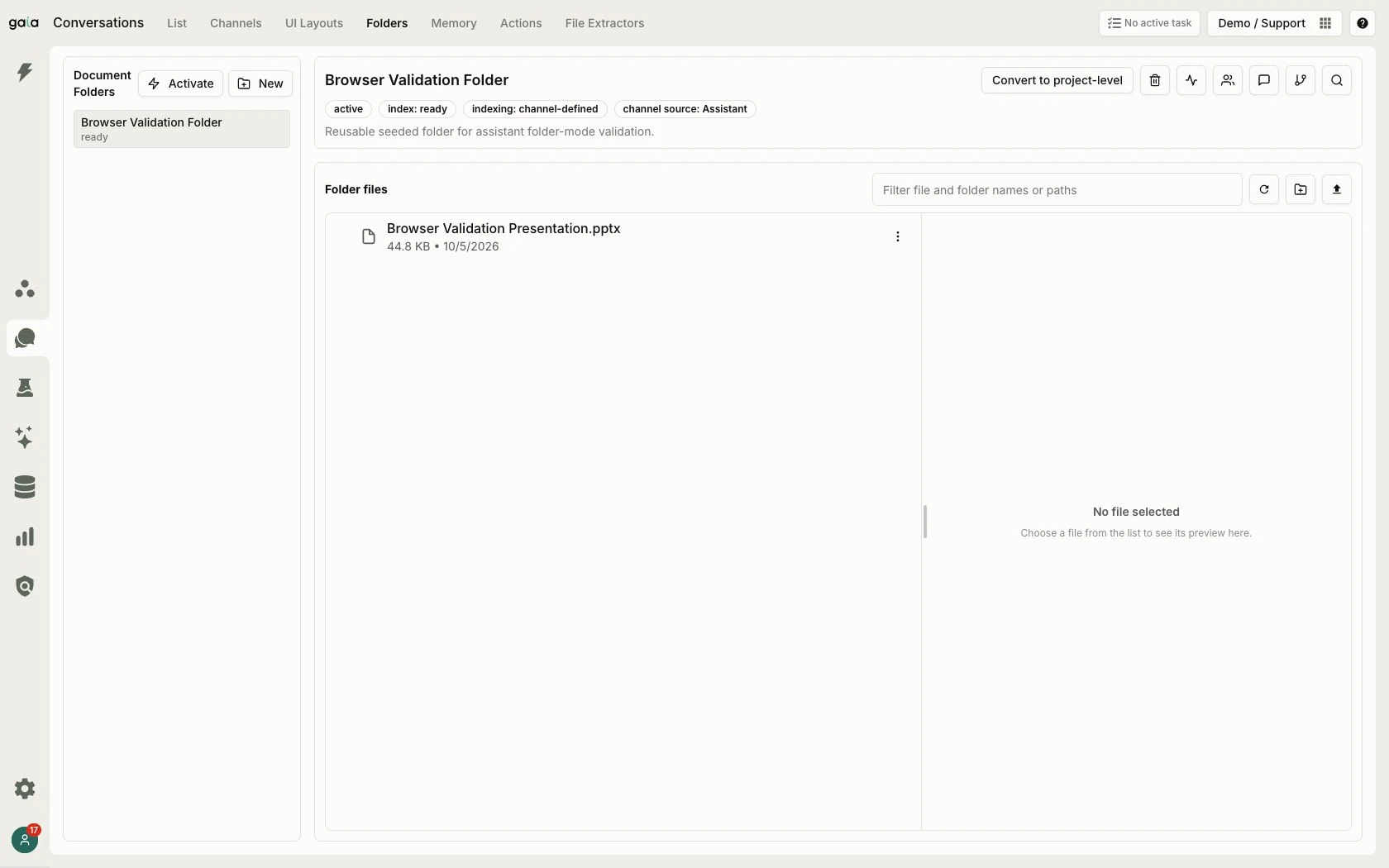
A demonstration folder containing an indexed presentation. No file is selected in the preview pane. Folder participation and project-level knowledge attachments serve different access patterns.
Shared memory provides a separate place for information intended to persist across interactions. Each record has a value, scope, provenance, and lifecycle. The workspace exposes correction, suppression, and expiry so that remembered information can be reviewed and changed.
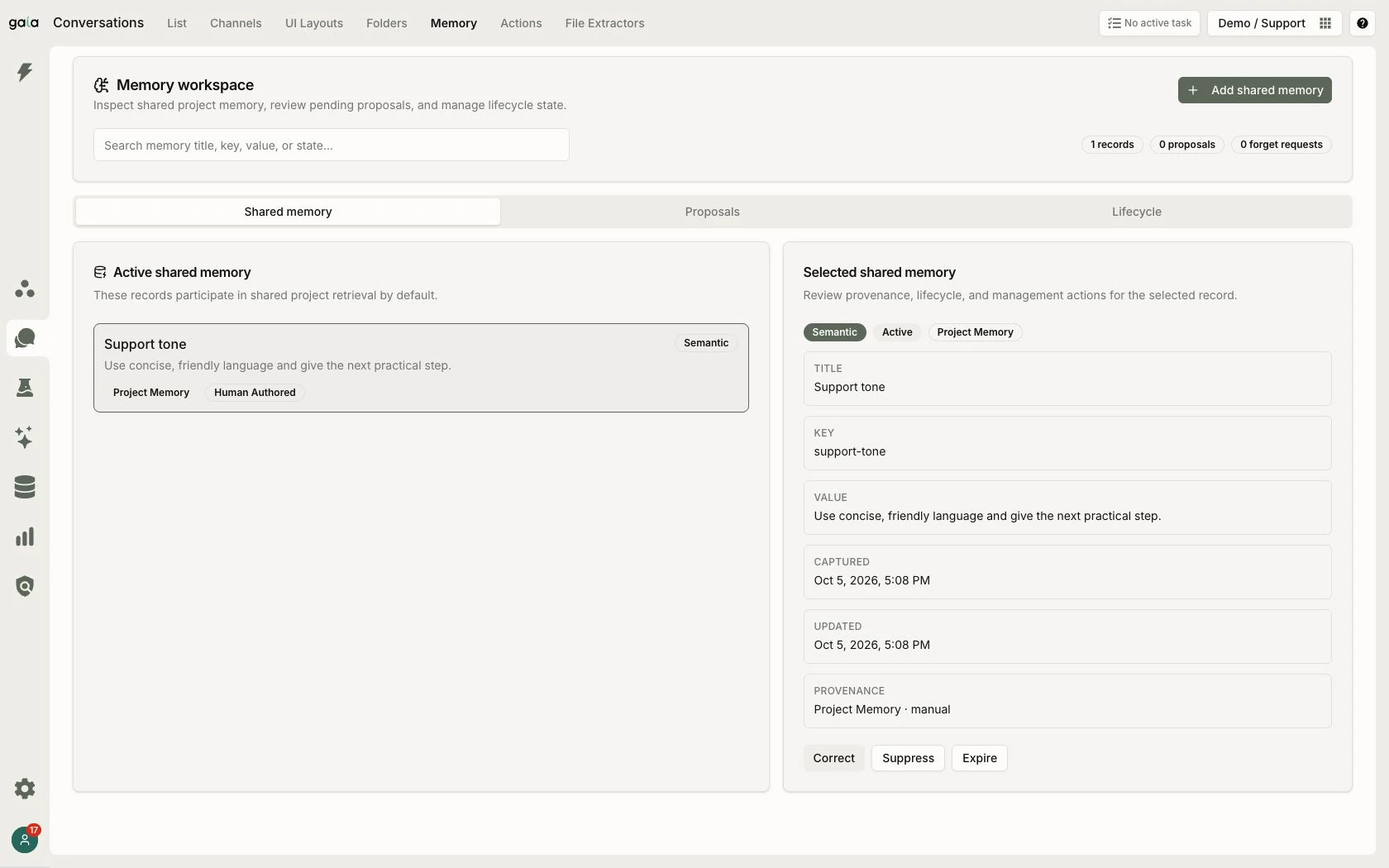
An active, human-authored project memory: “Use concise, friendly language and give the next practical step.” Its origin and lifecycle remain visible alongside the remembered value.
Working with structured data and interfaces
An AI application often needs records and forms as well as conversation. Gaia's data model defines entities, properties, and relationships for relational or graph data. Property definitions capture the field's type and constraints, including whether it is required or unique.
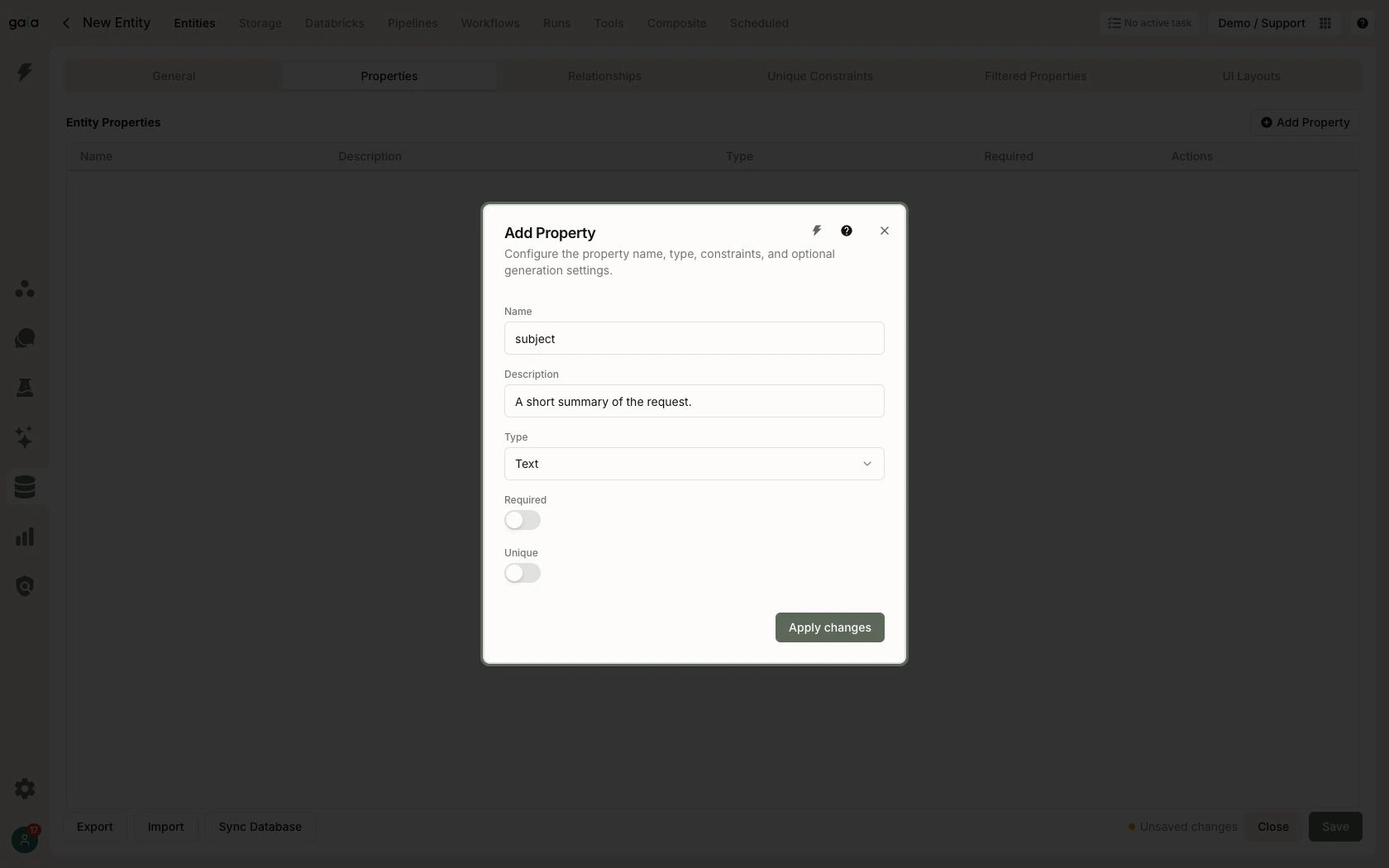
A draft subject field for a Ticket entity. This example was not saved or synchronized to a database.
The entity visualization makes the schema visible as a connected model, placing fields inside each entity and labeling the relationships between them.
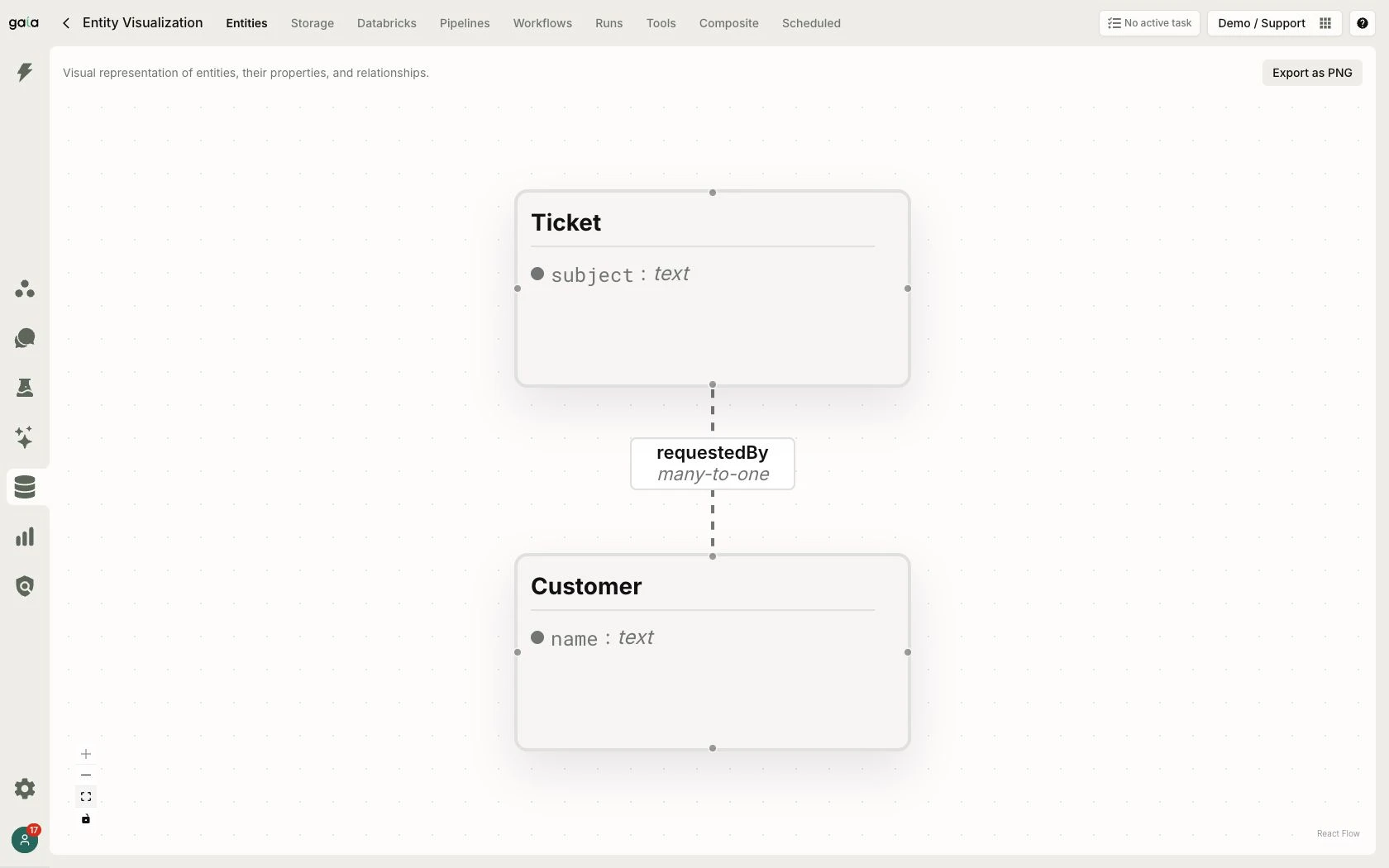
A small support model prepared for this walkthrough: many tickets can belong to one customer. These are saved demonstration schema definitions, with no customer records or database synchronization.
The UI layout editor brings a component outline, a rendered preview, and properties into one workspace. Layouts can present structured information in conversations and apps. Data and update bindings connect that interface to the records it reads or changes.
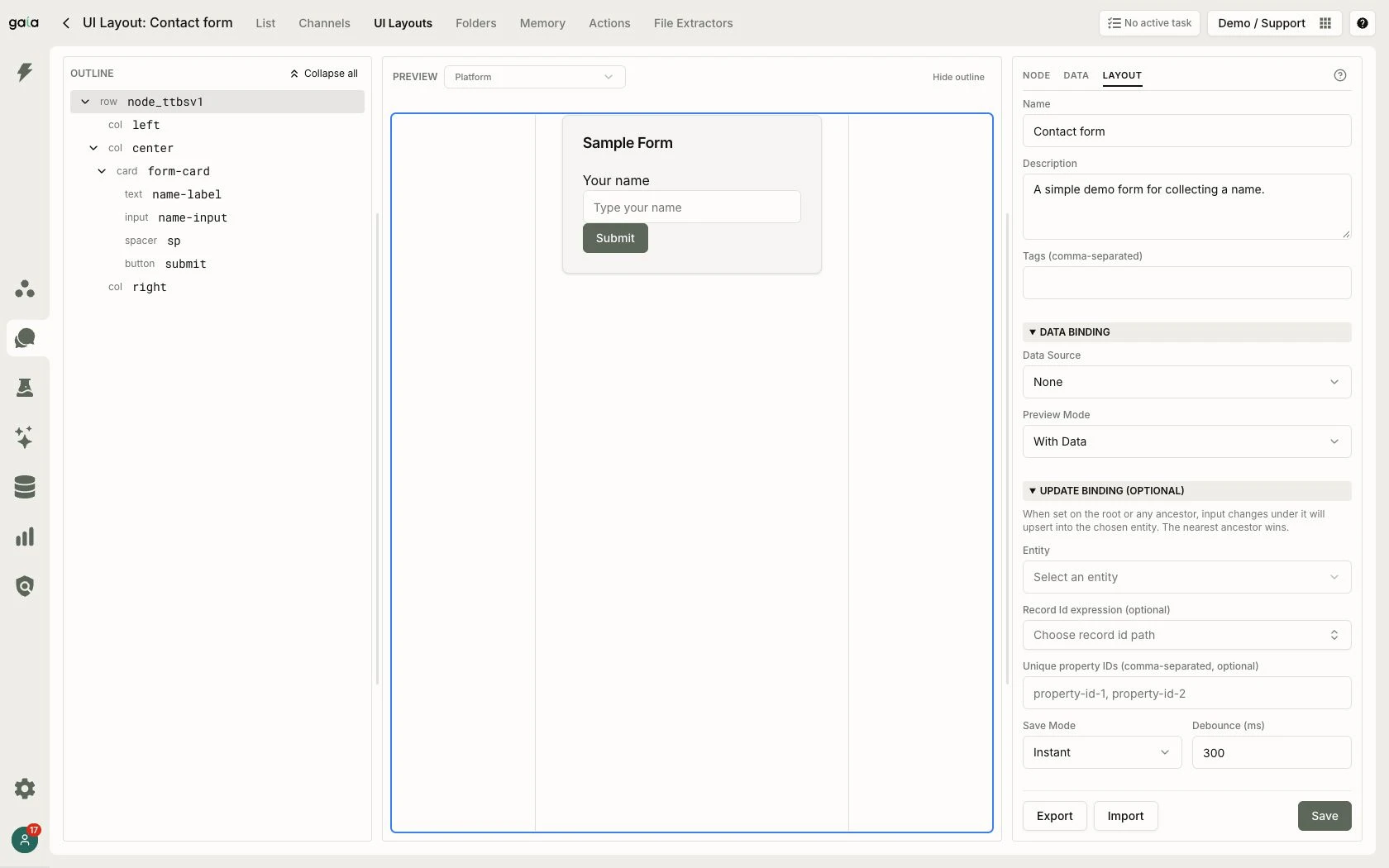
A starter contact form. Its data source and update entity are unset: the screenshot demonstrates interface authoring, not a completed database connection.
Connecting agents and human decisions in a workflow
The workflow editor connects agents, tools, and human actions on a graph. An agent node selects the agent to call, supplies its prompt, and can store the response in workflow context for later steps. A human-action node makes the point requiring a person's review explicit in the sequence.
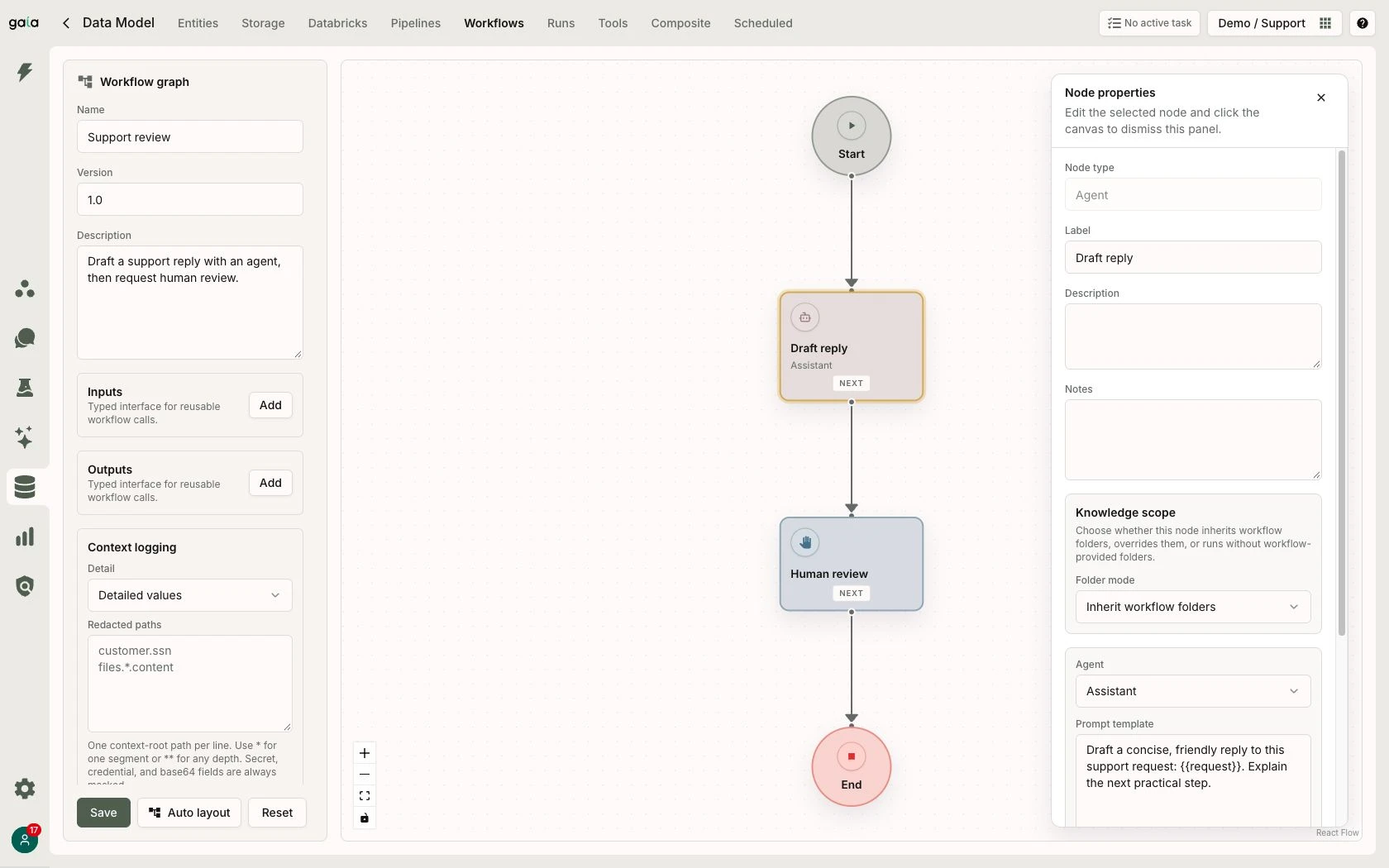
The saved Support review definition: Start → Draft reply (Assistant agent) → Human review → End. The selected node's properties show its Agent type, Assistant reference, and prompt. Its text output is configured under draftReply; the next node requests human approval. This example was saved and reloaded, but not executed—no model response or approval was generated for the capture.
Some automation needs a person to decide what happens next. Gaia's Actions workspace collects approvals, decisions, and requests for input from workflow runs. Selecting an action brings its context, assignment, review fields, and originating run into the same view.
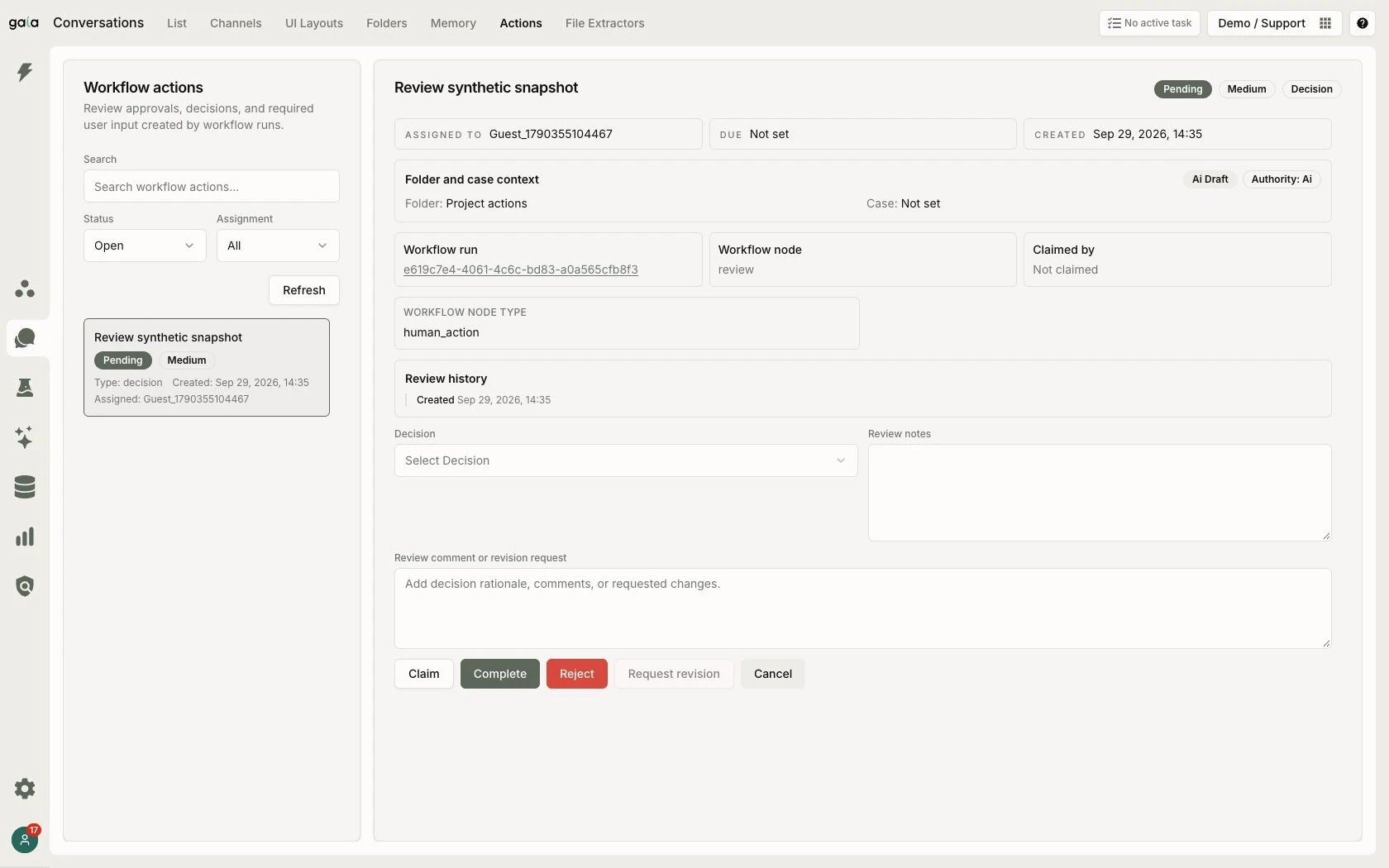
A synthetic decision awaiting review from a separate review-continuation fixture. It is not a run of the Support review graph above. The reviewer can inspect the context before completing, rejecting, or requesting a revision; no decision was submitted for this capture.
Following the run opens its execution trace. Status, pause reason, node lineage, events, and checkpoints explain how execution reached the point requiring attention. The connection between the human action and the run makes it possible to inspect the process behind the request.
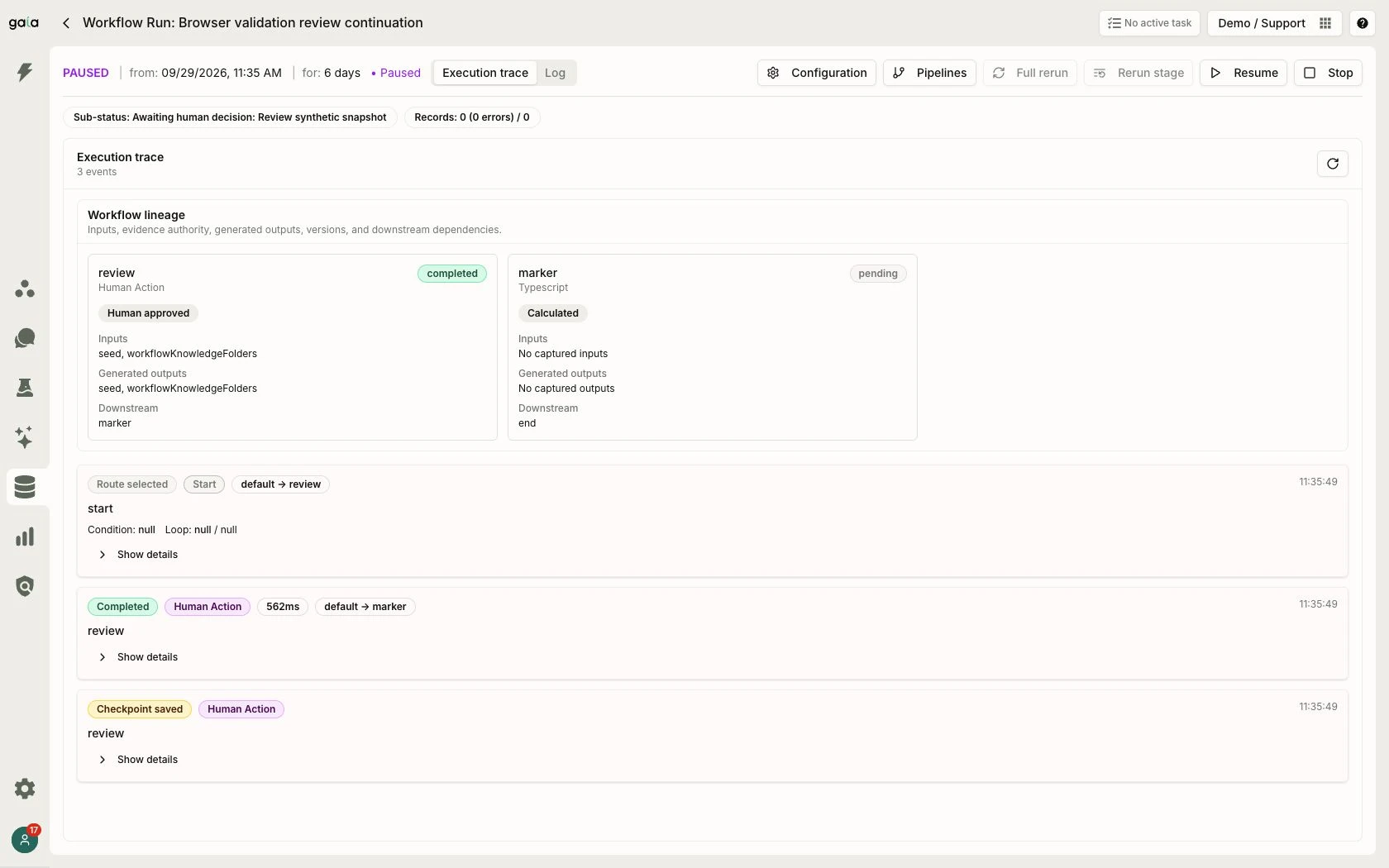
The associated synthetic run, paused for a human decision. Its earlier completed event and saved checkpoint do not mean the currently pending action has been resolved.
Evaluating behavior and inspecting the evidence
Evaluation brings datasets, agent configurations, graders, and trials into a repeatable review process. A run records which resources were used and separates execution status from the quality of the outcome. Reviewers can move from the run summary to the trial's conversation, behavior, grading, outcome, and human review.
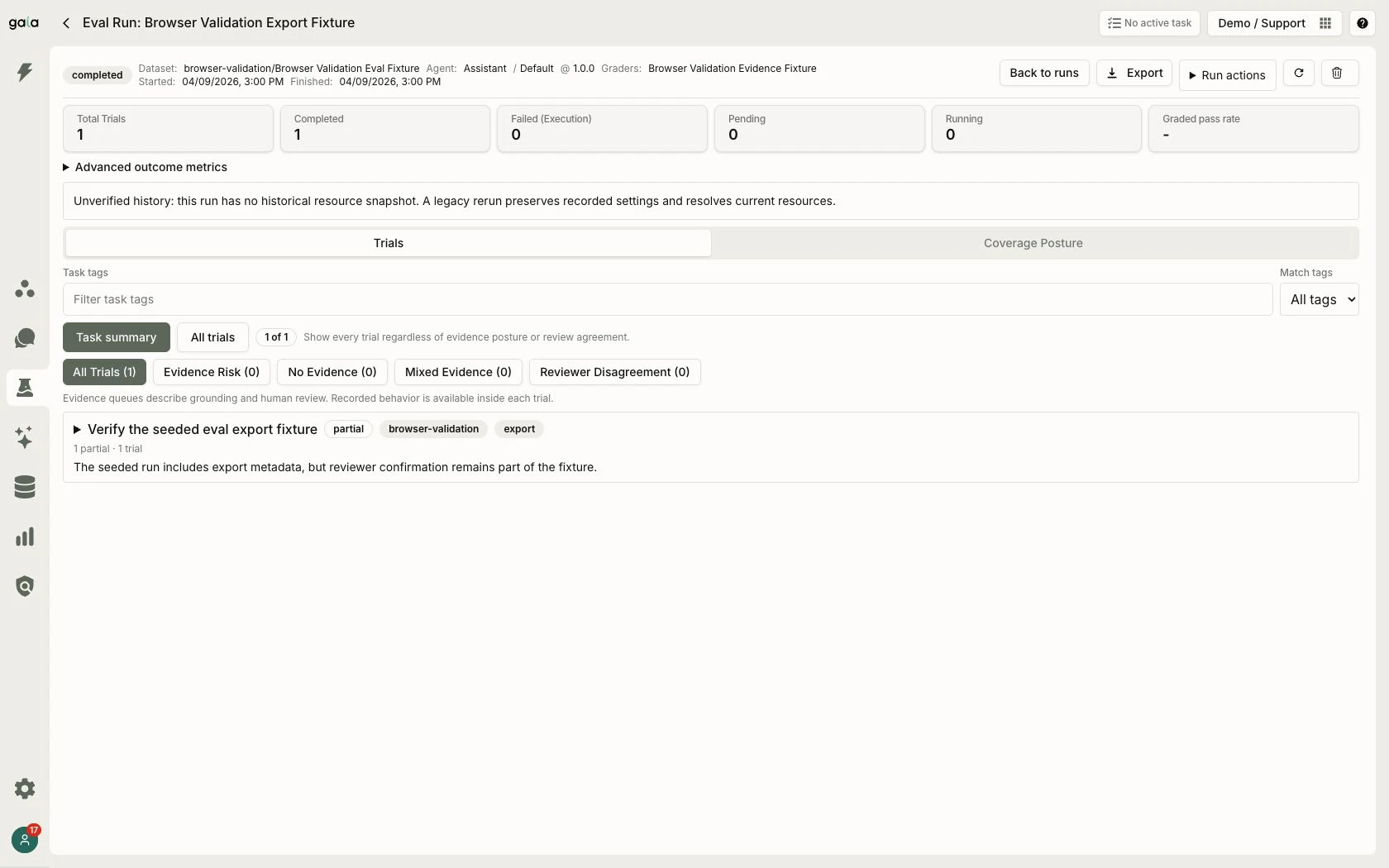
A prepared historical evaluation with one completed trial and a partial outcome. The visible Unverified history notice identifies the missing historical resource snapshot.
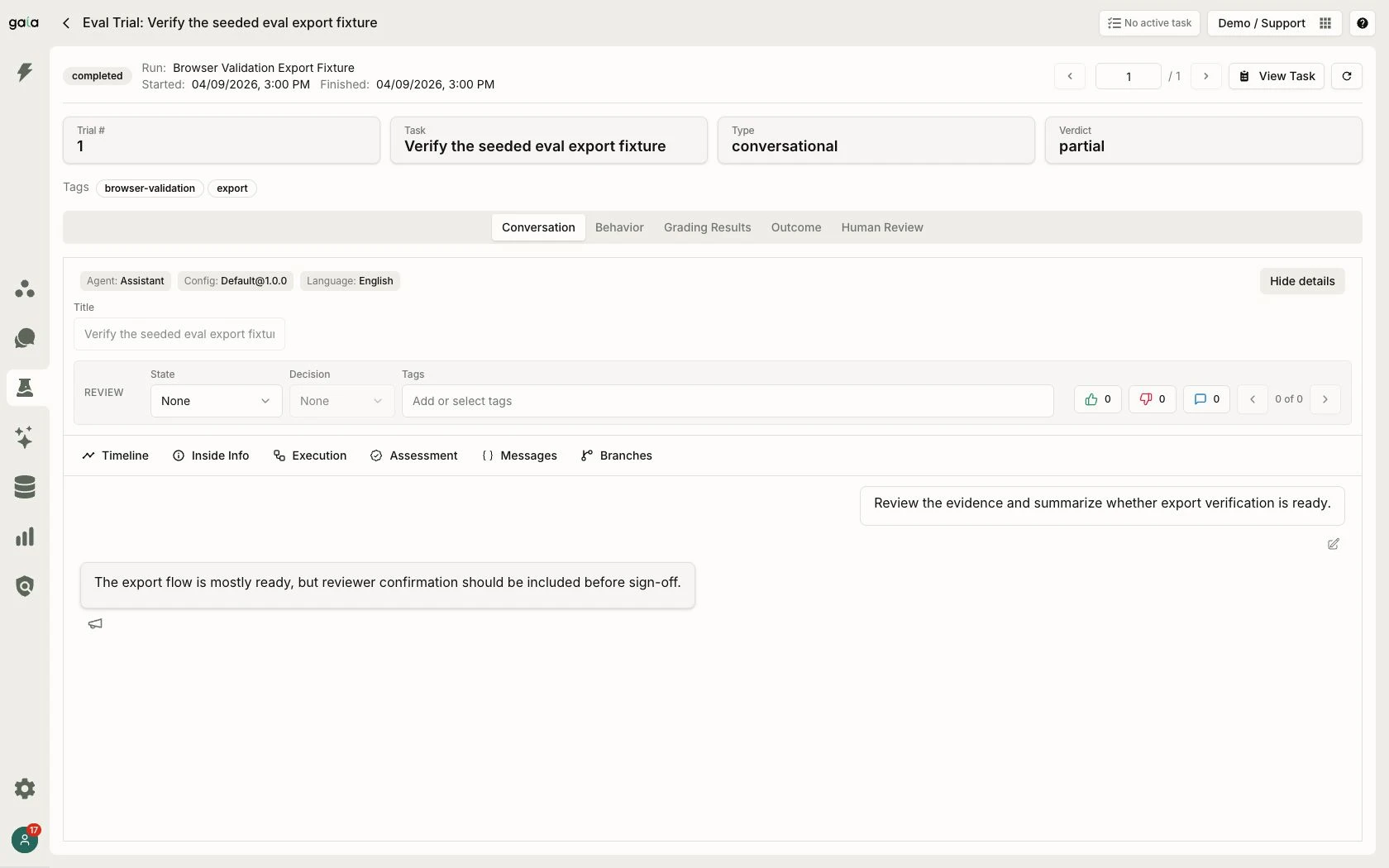
Inside a trial, the recorded exchange sits alongside the inspection controls. Reviewers can read what happened before examining the grade or adding a human judgment.
The grading view connects a verdict to its supporting outputs and evidence. This makes the difference between an execution finishing and a task succeeding visible in the product.
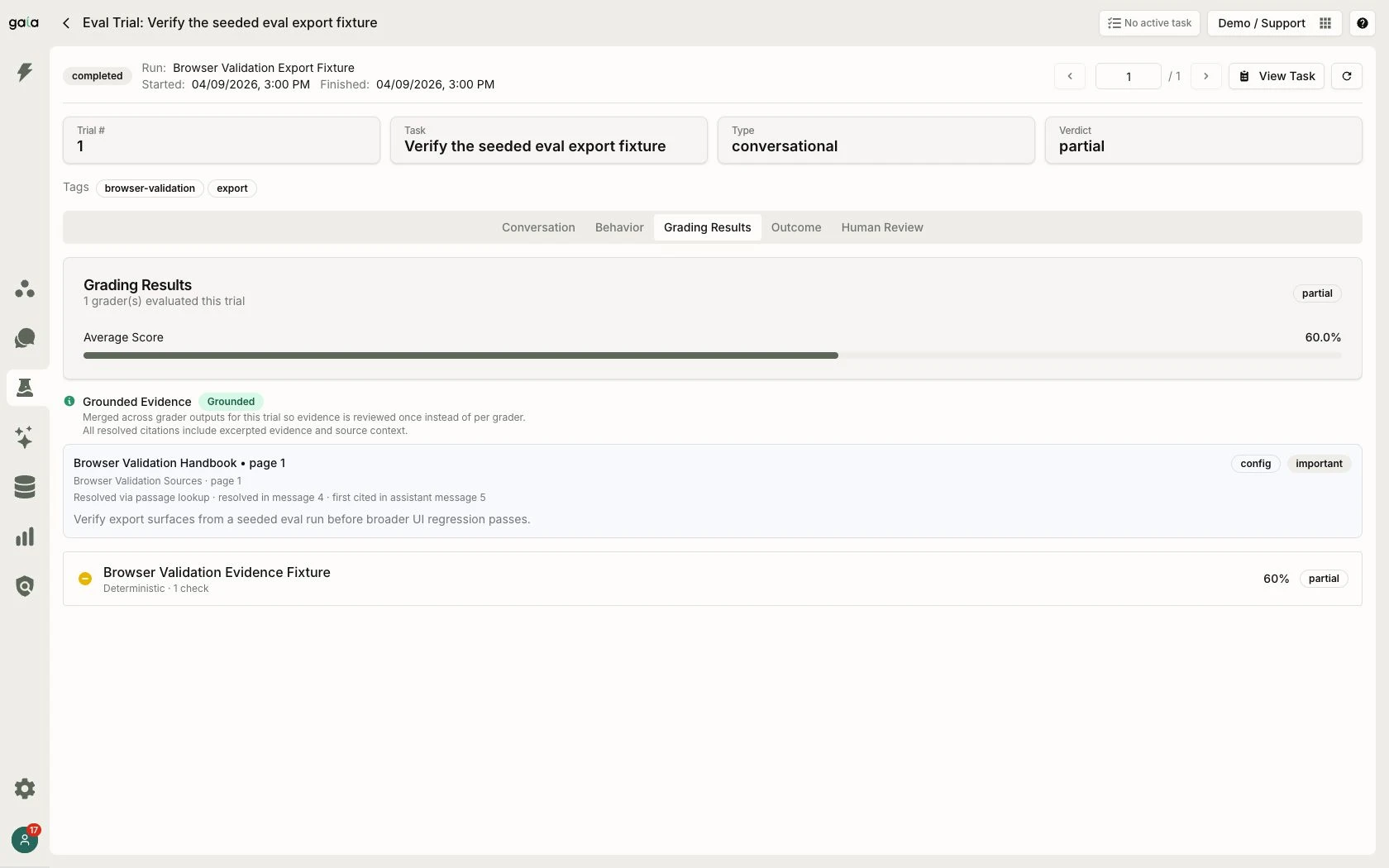
The same demonstration's partial grade and grounded excerpt. The 60% score is fixture data, not a claim about Gaia's accuracy; an evidence citation does not by itself establish success.
Connecting metrics to the underlying conversations
Dashboards expose conversation counts, cost, turns, and quality indicators for a chosen period and population. Filters and metric definitions establish what is being counted. Record drill-downs let a reviewer inspect the conversations contributing to a number.
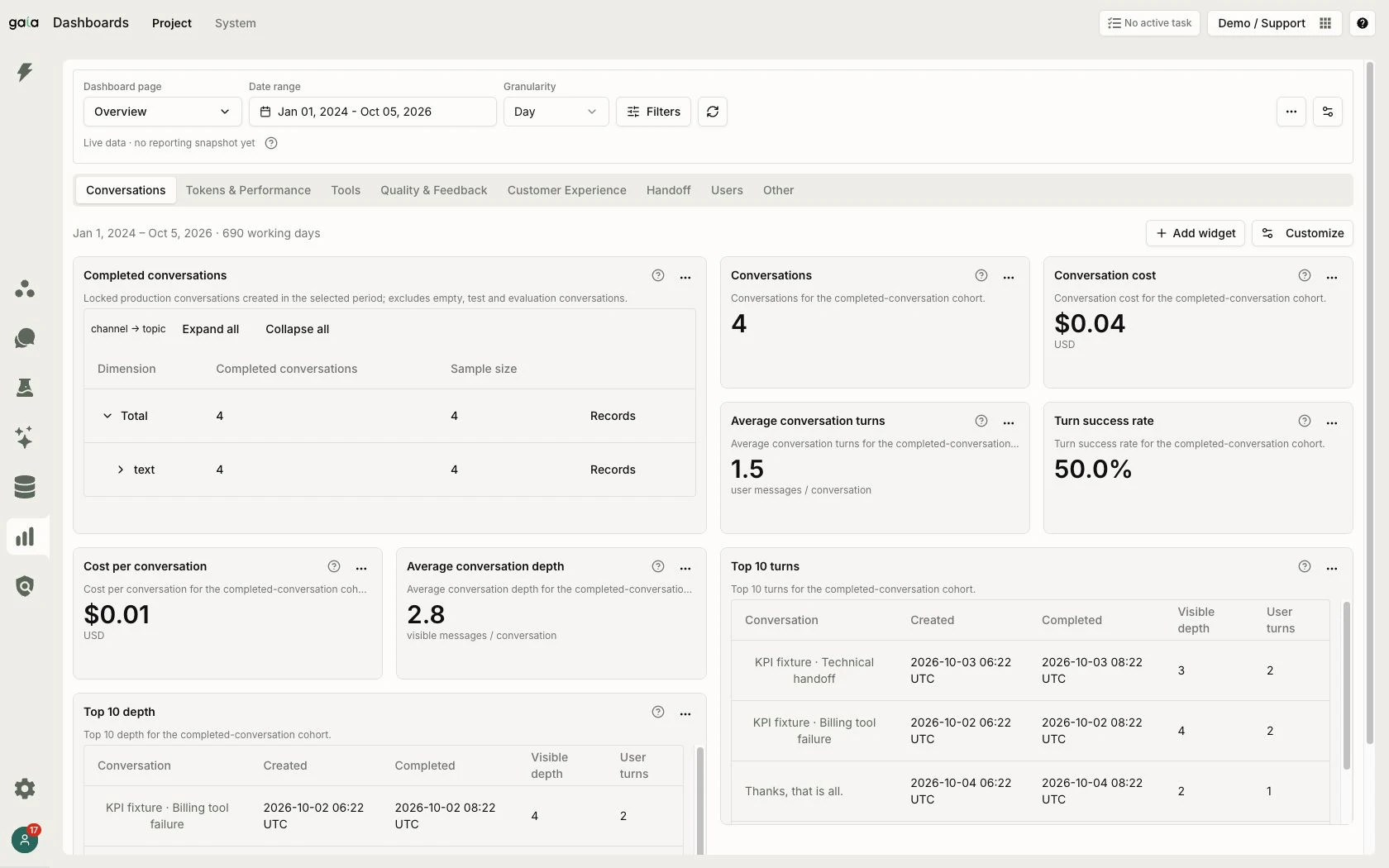
A dashboard populated with four synthetic completed conversations. The figures illustrate the reporting interface, not production performance. The page also identifies that no reporting snapshot exists yet.
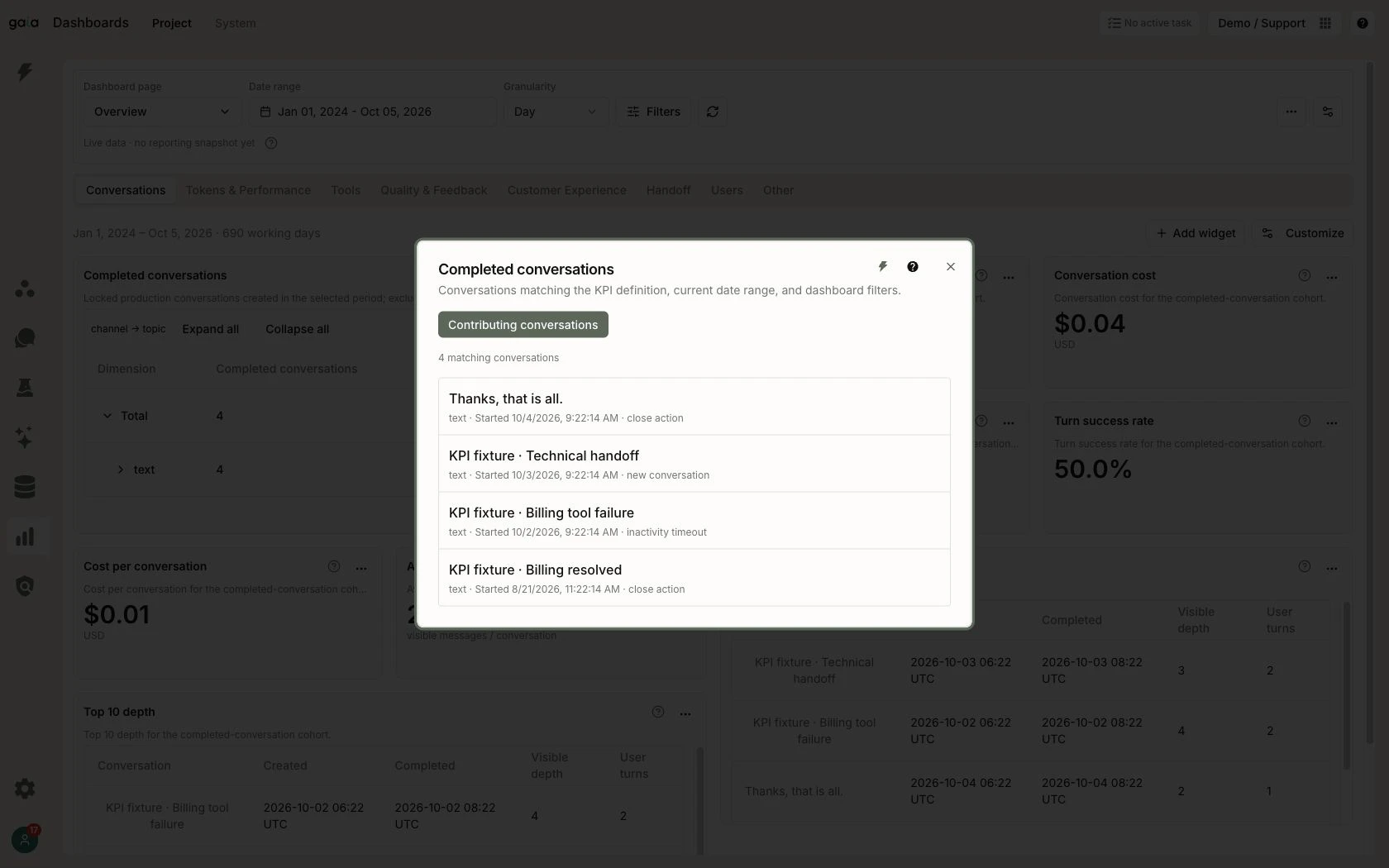
Opening the completed-conversation total reveals its contributing records. The selected dates, filters, and metric definition determine this list.
Carrying the application through delivery
Delivery Management organizes work into cycles with four stages: Planning, Exploration, Development, and Evaluation. Activities connect the intended work to status, evidence, artifacts, and assigned roles. The product puts these alongside the application and its evaluation work.
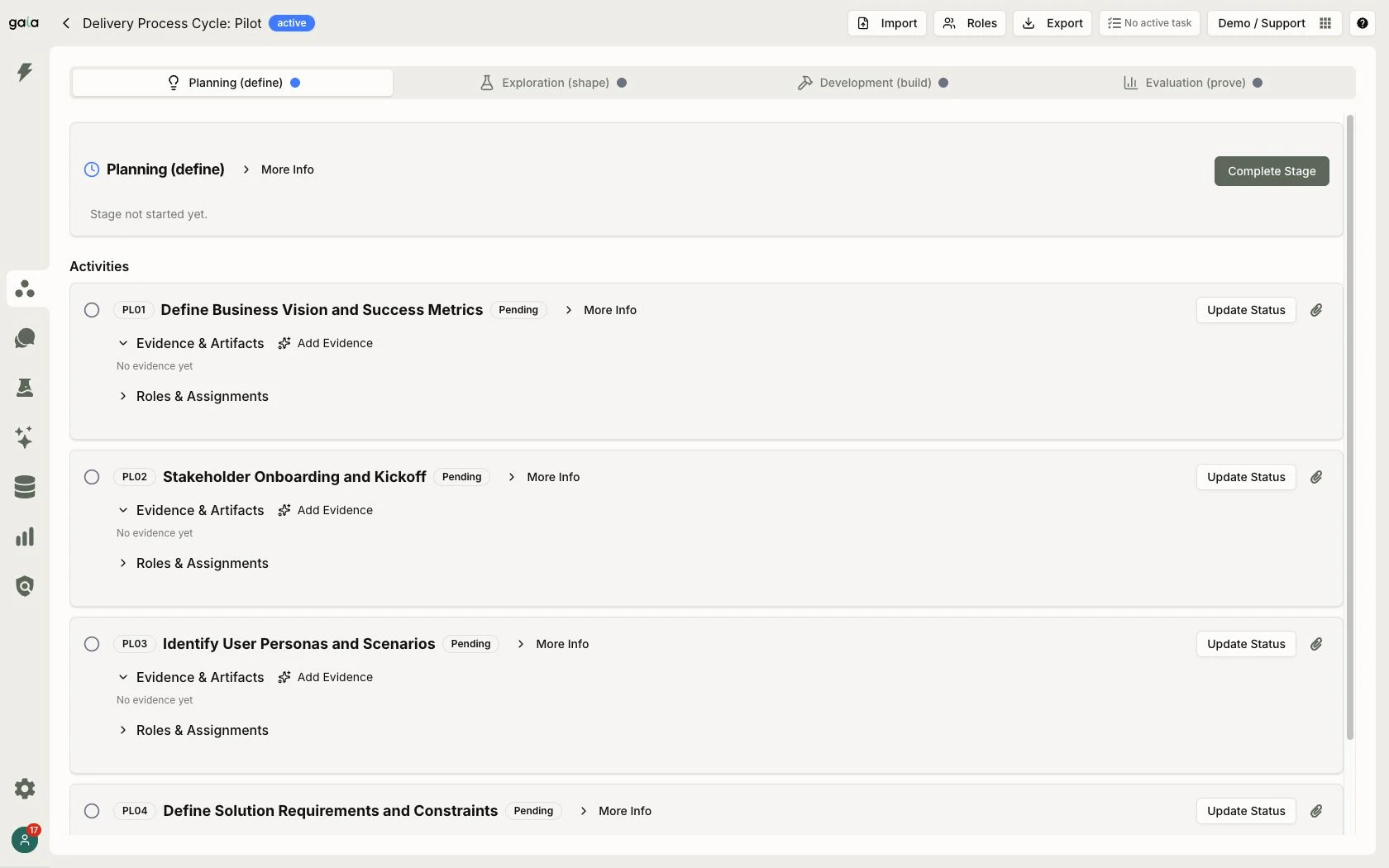
A demonstration planning stage with four initialized activities. They remain pending, with no evidence attached; loading the checklist does not complete the work.
Making governance inspectable
The governance workspace separates runtime oversight, catalogs, risk and compliance, evidence, and discovery. Its overview leads into individual records so that reviewers can examine the context behind a count or status.
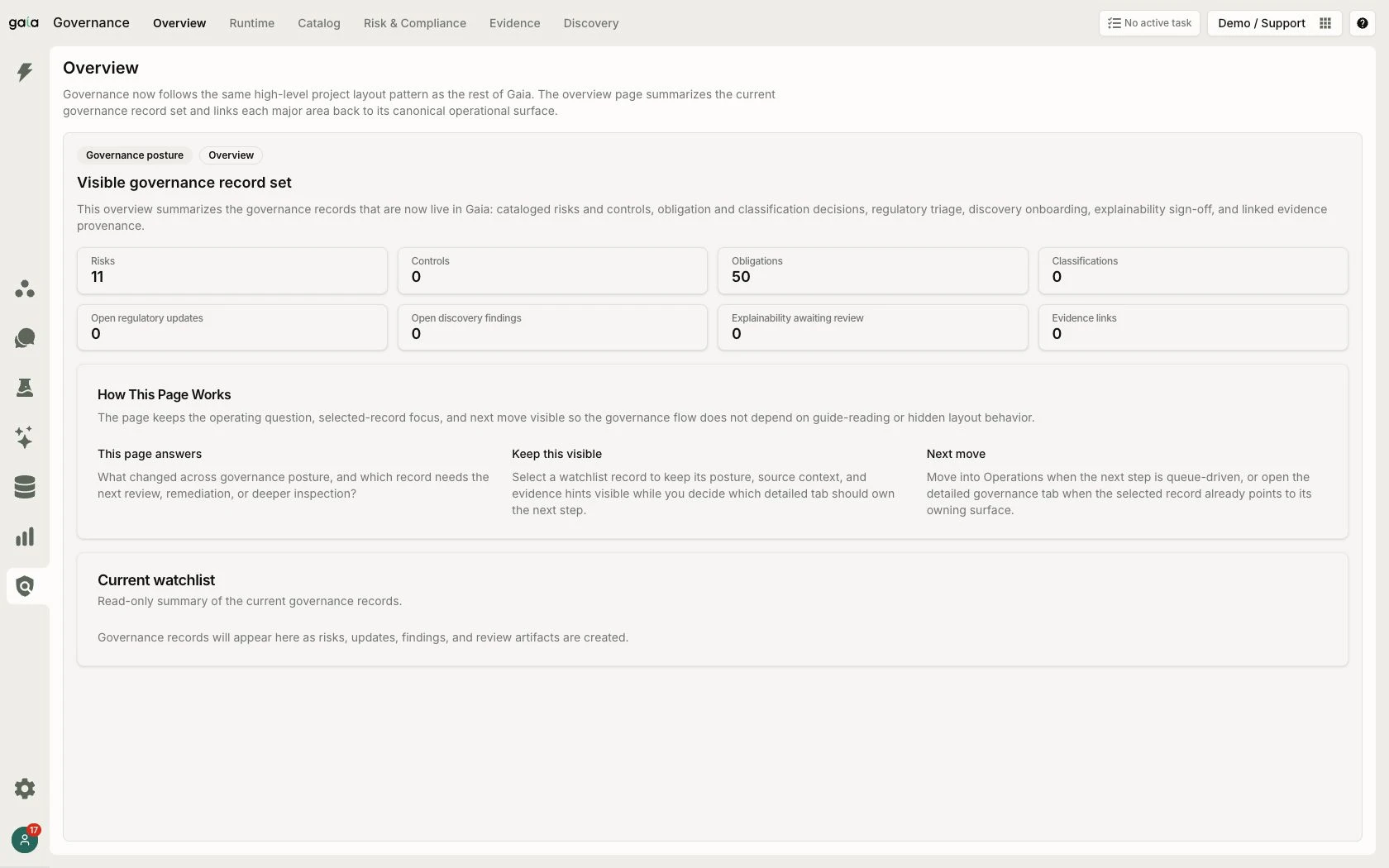
The governance overview provides a starting point for review. Its counts summarize records in the demonstration environment; they are not compliance scores or certifications.
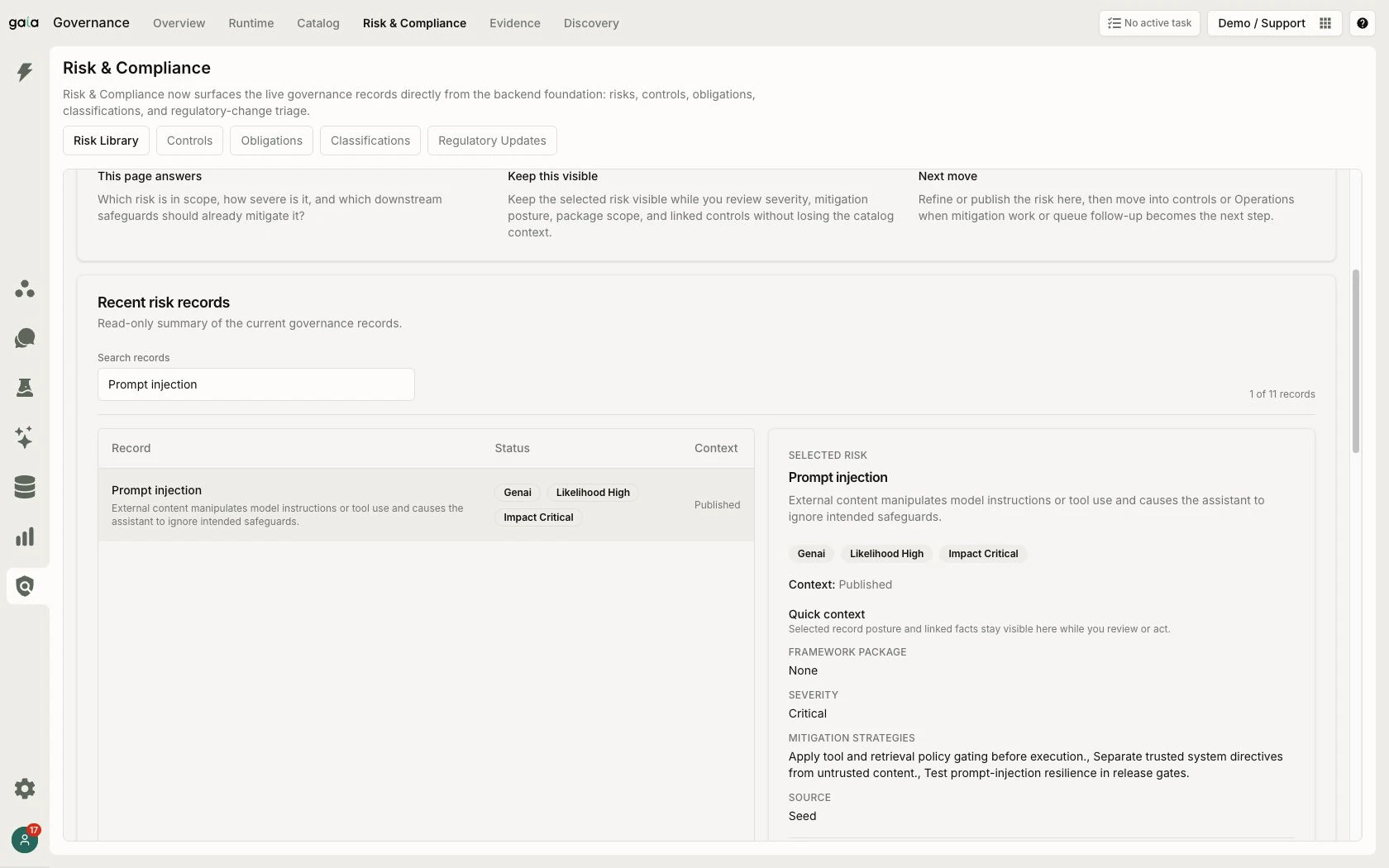
The Prompt injection entry in the demonstration risk library. Its published status describes the catalog record; it does not establish that a project has mitigated the risk or achieved compliance.
Together, these workspaces show the architectural problem my work addresses: keeping an application's behavior, data, human responsibilities, quality evidence, and delivery decisions connected as requirements change. The platform gives those concerns concrete places in which people can configure, inspect, and act on them.
Sources
- Gaia visual platform guide, versions 3.2.105–3.2.106 — the primary source for this walkthrough. The main set was refreshed on 5 October 2026; the agent workflow graph was added on 6 October, with the development indicator hidden. The entity visualization was captured separately from the same local demonstration workspace. All images are hosted with this page at their original 1680 × 1050 dimensions and preserve the interface and relevant notices. Gaia is UBITECH's platform and intellectual property.
- Gaia's official platform overview — the product's public description of its architecture and operating model.
- Gaia user guide — detailed product procedures, including evaluations and governance. The explanations and images above stand on their own; these links provide further reading.