
Evorad RIS/PACS functionality
Evorad combined radiology department operations, medical image management, diagnostic viewing, and remote access in one product family. A patient record connected the appointment and examination to its images, measurements, and report. The same workstation could support a radiologist working locally, connect to a hospital server, or access examinations remotely.
This overview presents the original product family associated with my work at Evorad from 2006 to 2011. It draws on the archived product walkthrough and contemporary marketing and technical documentation. These materials represent different releases and configurations, rather than one identical installation. They describe the historical software, not the specification of Evorad’s current products.
The screenshots below come from the original product walkthrough. Their captions link to the corresponding moments in the recording. Features beyond that walkthrough are described from the archived documentation and identified through the source references at the end.
The original Quick Start Guide (PDF) and 2009 product brochure (PDF) are available to read or download.
The product family
The product family shared a workstation and image-processing environment, with different deployment and workflow capabilities.
| Product | Functionality |
|---|---|
| Evorad Workstation | An independent diagnostic workstation with a local patient and examination database, image archive, reporting, DICOM communication, and image-processing tools. It could also connect to local or remote Evorad servers. |
| Evorad RIS/PACS and Teleradiology | A server and workstation system combining the radiology information system (RIS) with the picture archiving and communication system (PACS). It added centralized records, department workflow, scheduling, image archiving, remote access, and management information. |
| Evorad Research PACS | An extension of the imaging environment for custom algorithms, MATLAB integration, measurement export, and grouping patients and examinations into research projects. |
Capabilities depended on the edition and installation. For example, the archived technical offer describes a particular PACS configuration with several RIS and integration options left unselected. Its configuration checklist should not be read as a universal feature entitlement. 2; 3; 4
Patient records and examination history
The patient record brought together identity and demographic fields, contact information, medical information, and examination history. Linked views allowed a user to move between a patient, their examinations, associated image series, and reports without starting a new search each time.
Patient and examination lists supported filtering and sorting, including multiple sort columns and partial-text matching. The workstation guide also documents exporting a table’s contents to a spreadsheet. In a standalone deployment, these records lived in the local database. When the workstation connected to an Evorad RIS/PACS server, it accessed the central patient record and the wider RIS workflow. 2, pp. 9–11
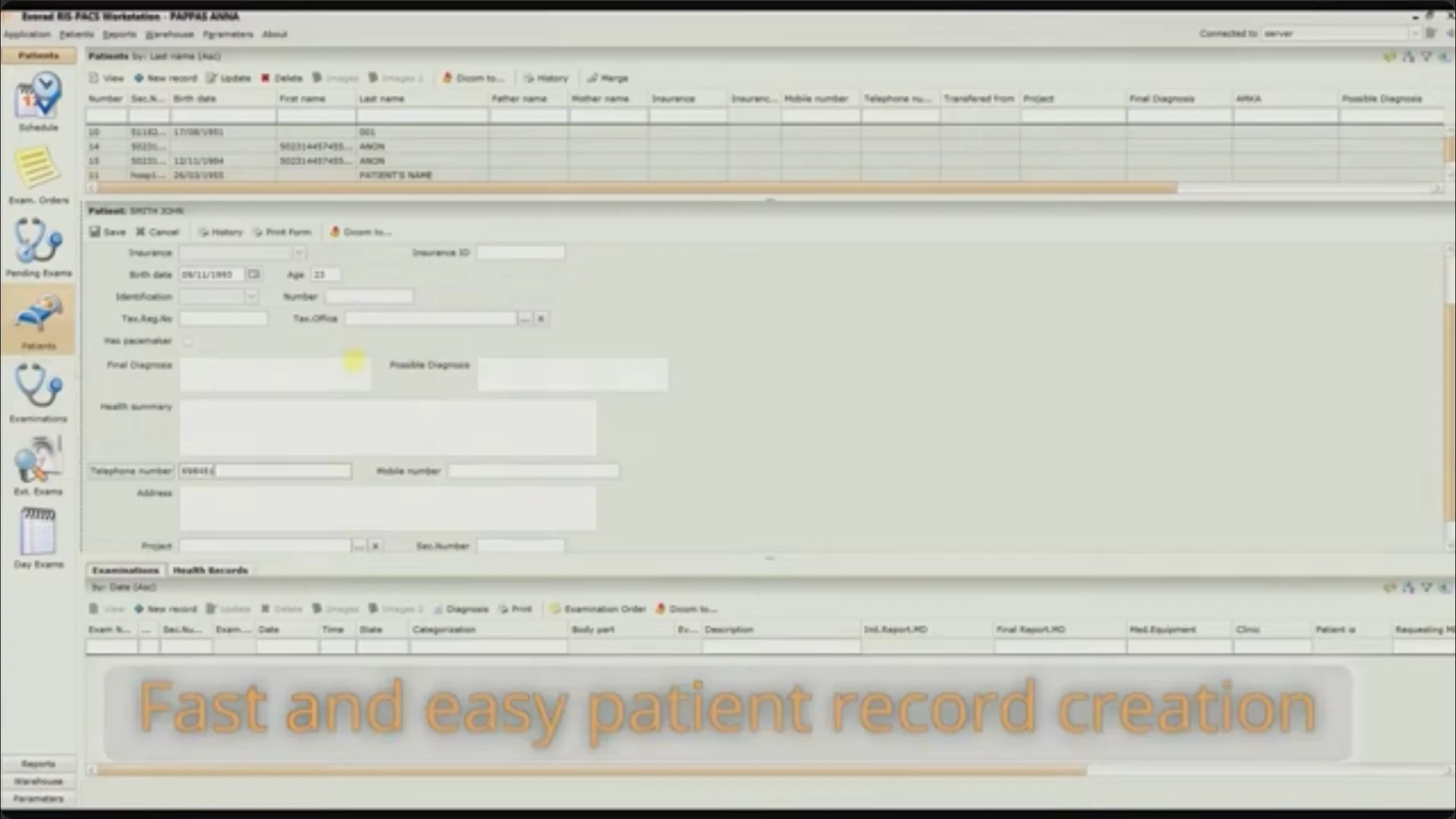
Patient record entry in the walkthrough, 00:17. The form keeps patient details and related records in the same working view.
Examination orders and scheduling
The RIS organized examinations before images reached the PACS. An examination record connected the patient to the procedure, date and time, modality, referring doctor, and other relevant information. The scheduling interface presented appointments alongside resource availability, including medical equipment and staff. Users could create and revise examinations through the same environment. 2, p. 10
The walkthrough shows examination entry, selection of a patient, and a calendar with color-coded appointments. The archive also describes scheduling based on resource availability constraints, although the brief video does not demonstrate that scheduling logic in full. 1; 3, pp. 7–8
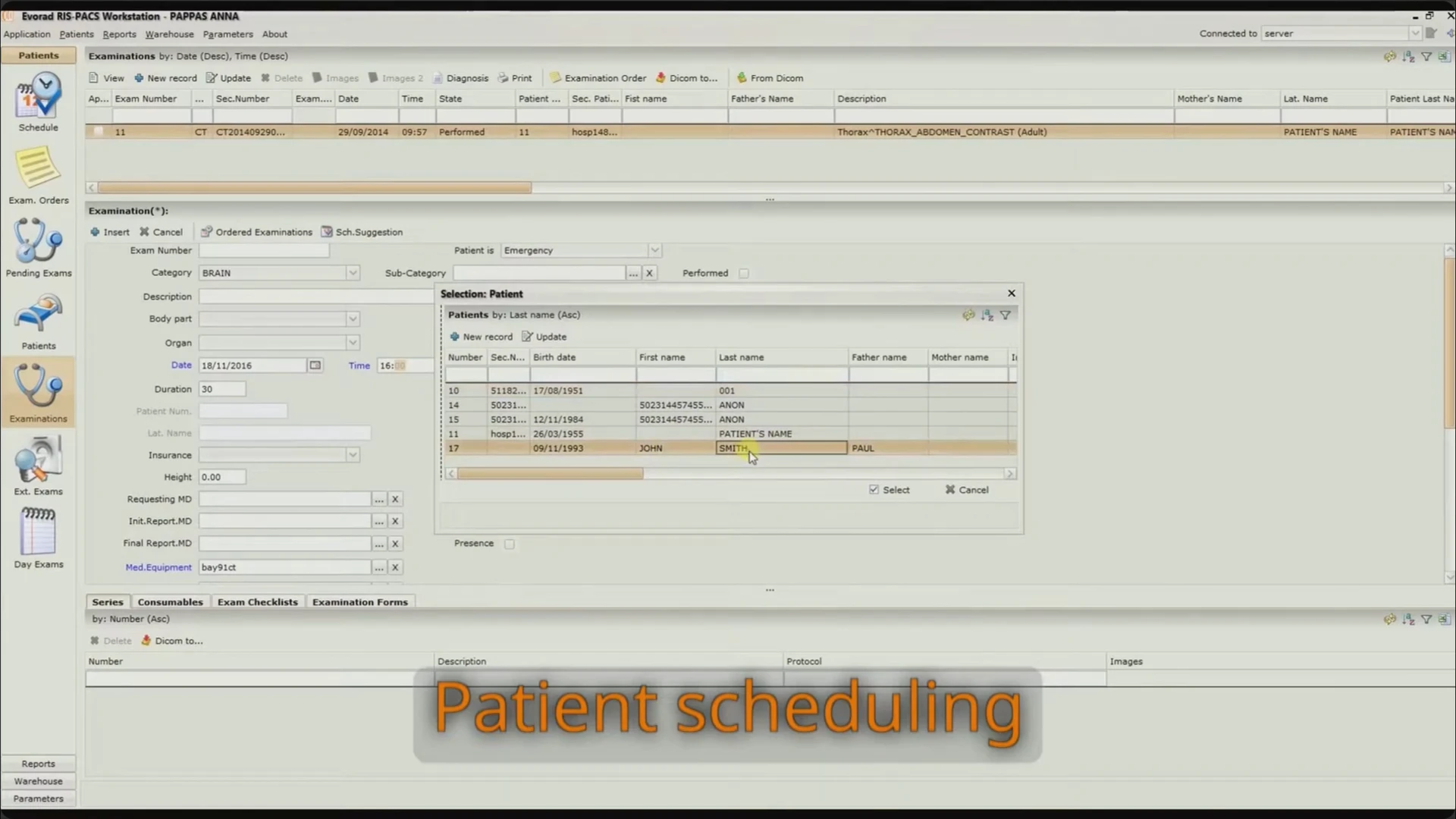
Examination entry and patient selection, 00:32.
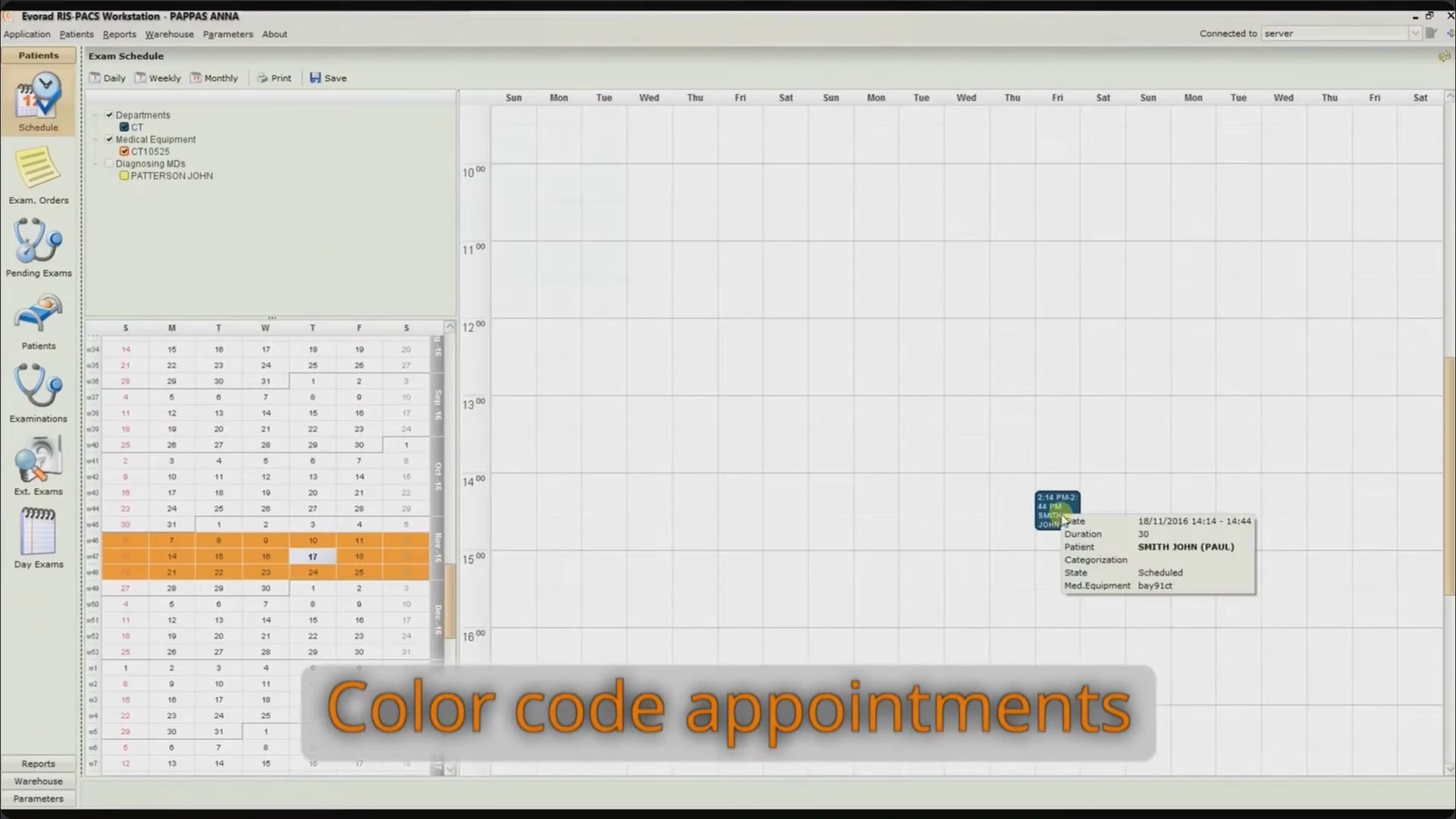
The scheduling calendar, 00:39. The view combines a resource hierarchy, calendar navigation, and an appointment timetable.
Role-based worklists and the examination lifecycle
The broader RIS workflow extended from ordering and scheduling to image review, report preparation, and delivery. Pending-examination lists showed the work requiring action, filtered by the user’s role and associated department. This let different participants work with the same examination while seeing the tasks relevant to them. 4
The documented workflow included:
- Order and appointment management: record the requested examination and organize the required resources.
- Acquisition coordination: provide modality worklists, with daily examination lists for equipment without DICOM Worklist support.
- Image interpretation: open the examination’s images, compare relevant studies, and retain measurements and annotations.
- Reporting: prepare the diagnosis text, with dictation and transcription integrations where configured.
- Completion and delivery: retain the report with the examination and provide printing or export options.
The archive describes continuous examination-status updates and pending-work views. The video illustrates selected steps rather than a complete workflow across every staff role. 1; 3, pp. 8–9
Image acquisition and DICOM connectivity
Evorad could receive images from imaging equipment and exchange studies with other DICOM systems. The workstation guide documents both client and server roles for storage and query/retrieve, together with worklist services requiring RIS functionality. The technical offer additionally lists DICOM printing and storage commitment. 2, pp. 31–34; 3, p. 14
Incoming DICOM images could create the corresponding modality, patient, and examination records from their headers. Users could also import DICOM files from a directory tree, query an external source for matching studies, and retrieve either whole studies or selected series. A process view exposed the progress of image reception. 2, pp. 11–14, 31–34
For integration with hospital information systems, the historical product materials describe HL7. The technical offer lists web services, database tables, and text files as additional integration approaches. These were installation-dependent interfaces, not evidence that every connection was active in the recorded system. 3, p. 15; 4
The diagnostic workspace
The image viewer organized examinations, series thumbnails, and diagnostic views in one workspace. Selecting an examination populated its available series. Users could drag a series into a grid cell, open additional grids as tabs, and change the layout to suit the examination. 2, pp. 15–18
The documented layout system supported grids from 1 × 1 to 6 × 6, including intermediate arrangements. Tabs and views could move across monitors, with support for conventional color displays and grayscale diagnostic displays. A separate image window allowed color-dependent processing alongside diagnostic reading. 2, pp. 15–17; 3, pp. 11, 13
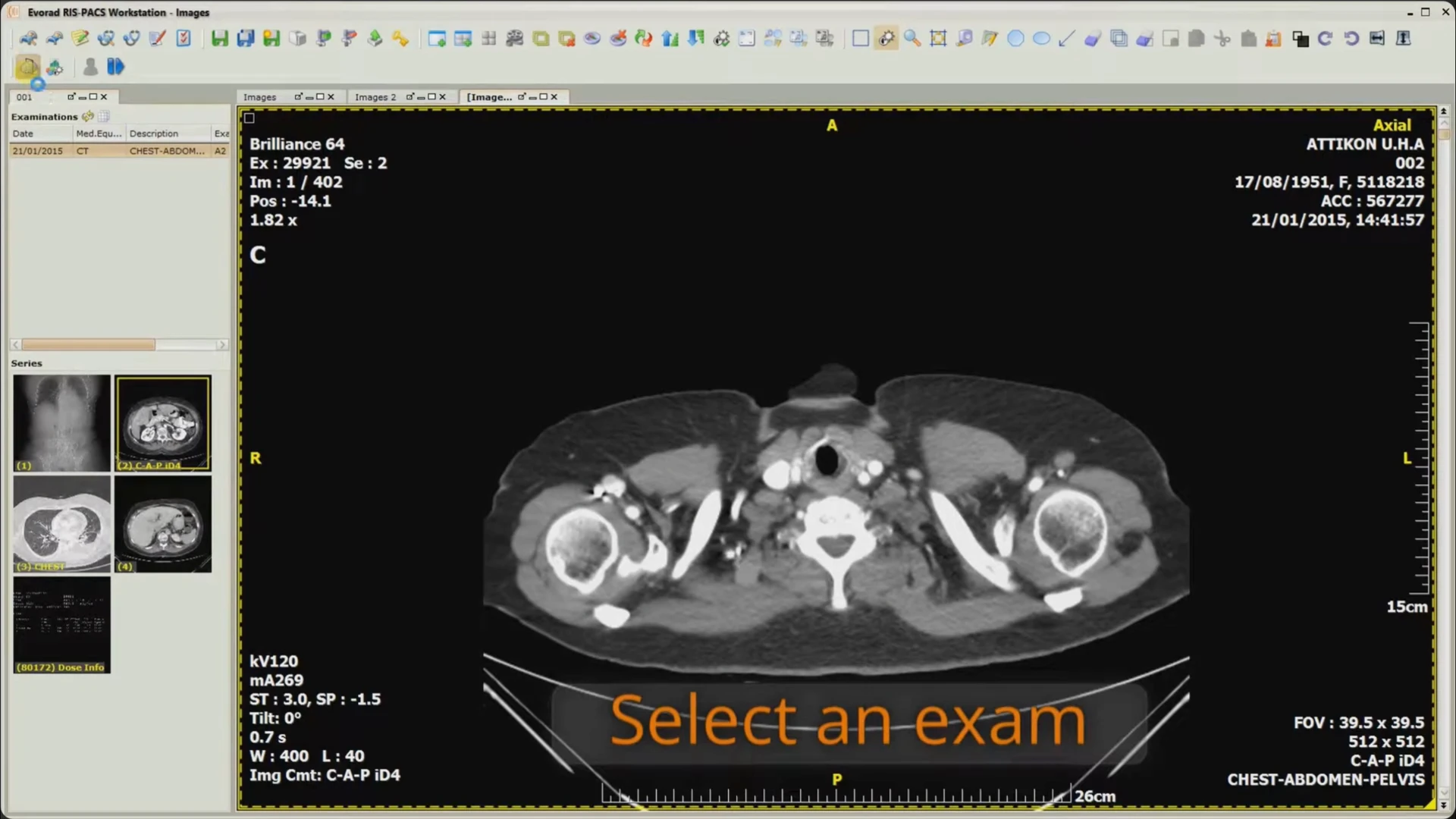
Opening an examination in the image viewer, 00:47. The examination list and series thumbnails remain accessible beside the image.
Image navigation and display controls
The workstation offered controls for both navigating image stacks and adjusting their presentation. Users could scroll through slices, move between series, select individual images or complete series, and apply operations to the selection. The guide documents mouse and keyboard navigation, including direct movement to the first or last image. 2, pp. 17–19
The display tools included:
- Window width and level adjustment, with named presets for different modality types.
- Zoom and pan, grayscale inversion, rotation, and horizontal or vertical flipping.
- Sorting by image position or other available DICOM fields.
- Film-like tiled views that displayed consecutive images across pages.
- Cine playback with adjustable playback behavior.
- Access to image metadata and DICOM header information.
These controls operated within the same viewer used for comparison, annotation, and reconstruction. The technical documentation describes saving viewing settings with images while preserving the original acquired image data. 2, pp. 18–24; 3, pp. 11–13
Multiplanar reconstruction and advanced visualization
The walkthrough demonstrates switching a CT examination into multiplanar reconstruction, or MPR. Sagittal and coronal views appear beside an axial view, with reference lines connecting their positions. This gives the reader several orientations of the same volume within one workspace. 1
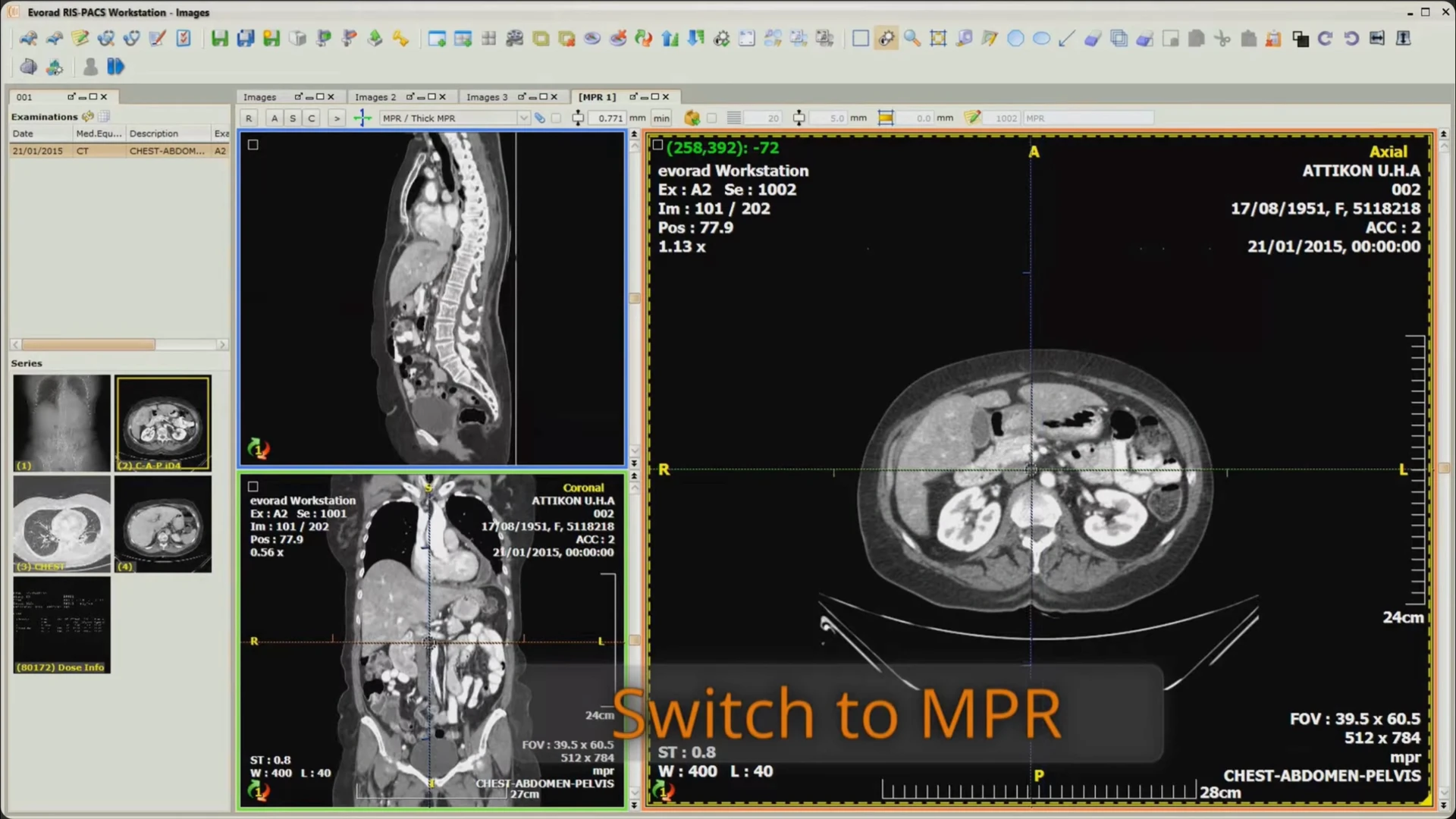
Switching to MPR, 00:59.
The workstation guide describes rotating the reconstruction planes, adjusting their orientation and slab settings, and producing derived slices. Users could specify a slice count, thickness, gap, series number, and description, then save the generated result as another series in the examination. 2, pp. 25–27
Beyond the MPR sequence in the video, the archive documents maximum-intensity projection (MIP) and minimum-intensity projection (minIP). The 2009 brochure also lists volume rendering. These belong to the documented visualization capabilities, although the walkthrough does not demonstrate every technique separately. 2, pp. 25–27; 3, p. 13; 4
Presets and interactive display adjustment
After opening MPR, the demonstration selects a display preset and adjusts a curve above the active image. The resulting color presentation changes interactively while the other anatomical views remain visible. Later in the sequence, another preset changes the appearance again. 1
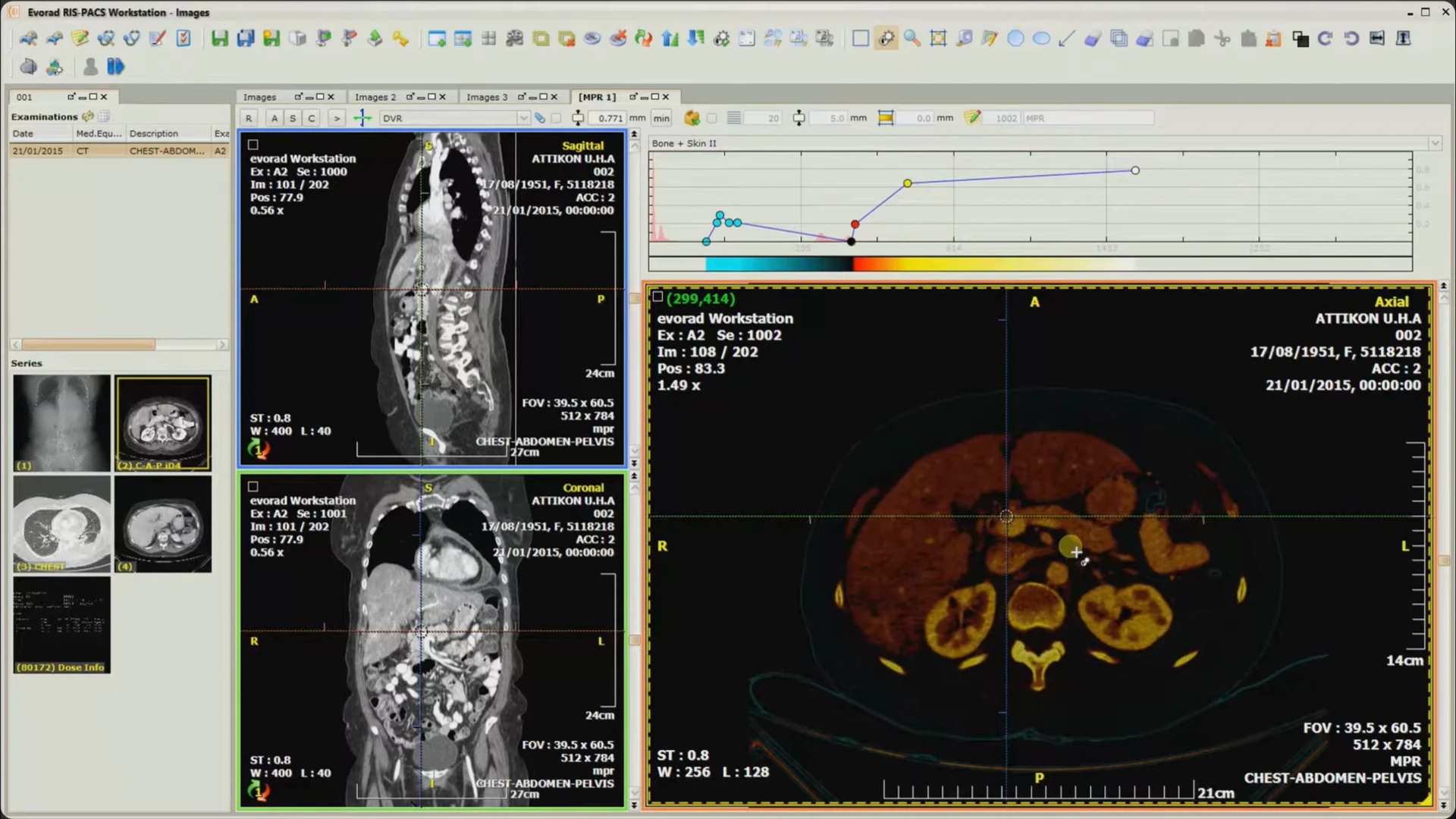
A selected display preset and its adjustment controls, 01:15.
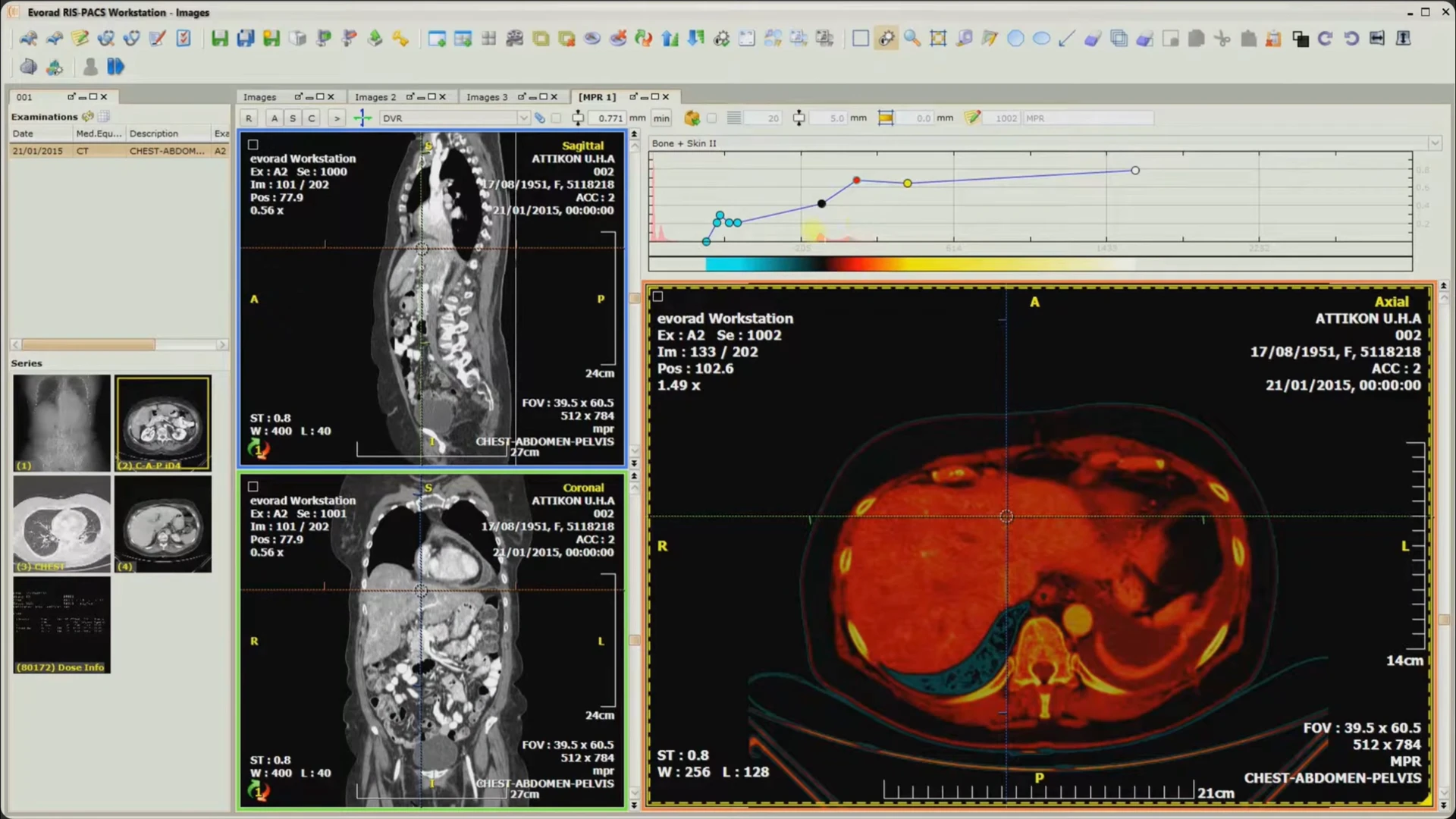
Interactive display adjustment, 01:27. The curve controls the presentation of the active image while the reference views remain visible.
Series layouts and hanging protocols
Evorad supported configurable hanging protocols to arrange a study’s series. The workstation guide describes matching a protocol to the study description, choosing a grid layout, and matching series descriptions to individual cells using patterns. If multiple protocols matched, the user could choose between them. A fallback arrangement handled examinations without a matching protocol. 2, pp. 20, 34–36
The walkthrough shows many series arranged together in a grid under the caption “Automatic exam distribution,” referring to the arrangement of image series in the viewing workspace. 1
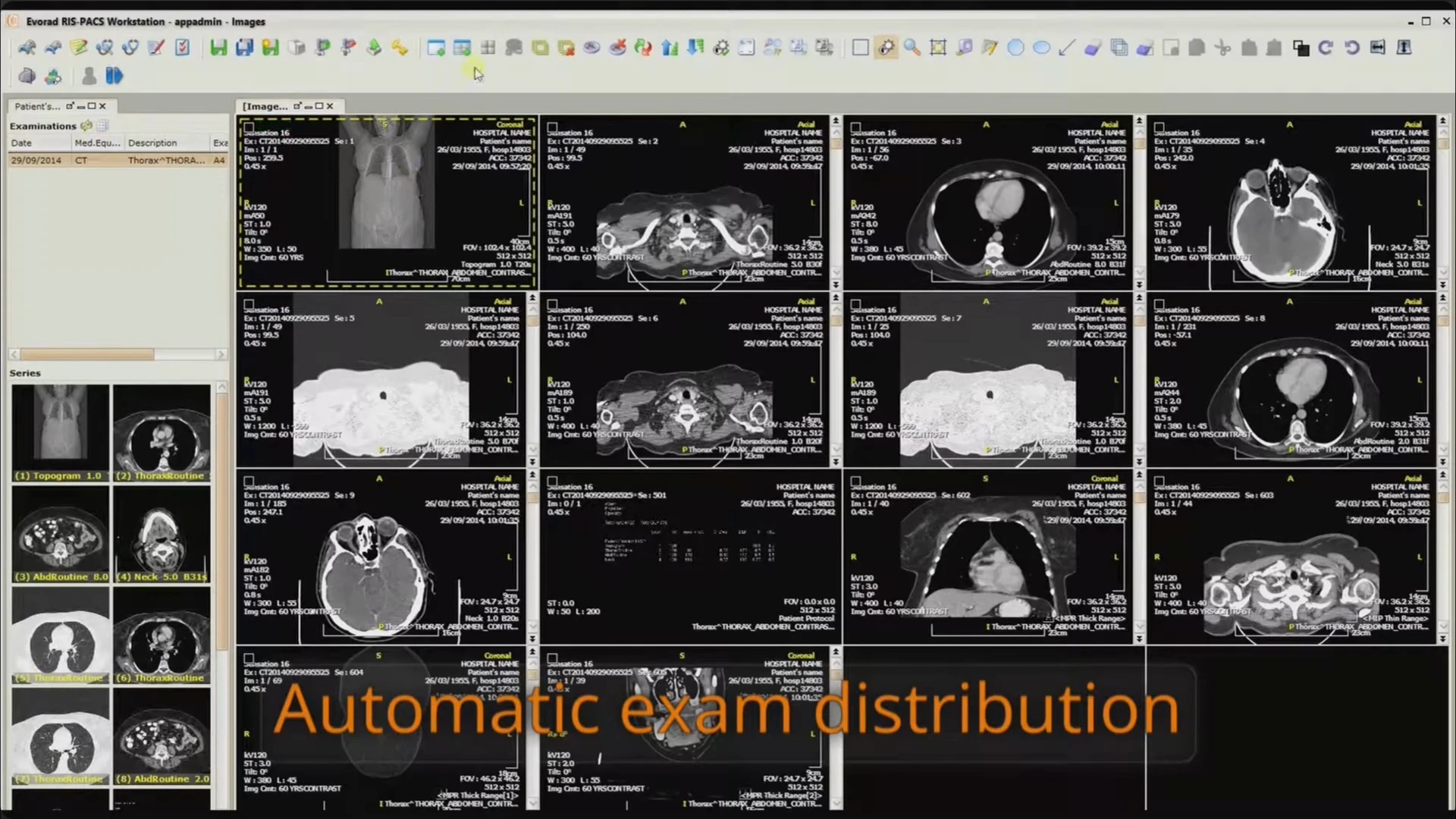
Automatic arrangement of series in the image workspace, 02:04.
Comparative reading and synchronization
The viewer could open additional examinations, including previous studies, within the same reading session. Separate patient tabs and flexible image grids supported comparisons across examinations and patients. Localizer lines showed the spatial relationship between slices in different series. 2, pp. 15, 19–22; 3, pp. 11–12
Synchronization could connect slice location, window settings, zoom and pan, and acquisition parameters such as MRI echo time. Users could retain multiple synchronization groups for more complex comparisons. The guide distinguishes automatic geometric synchronization from manual alignment: series from different examinations or reference frames required manual location synchronization. 2, pp. 20–22
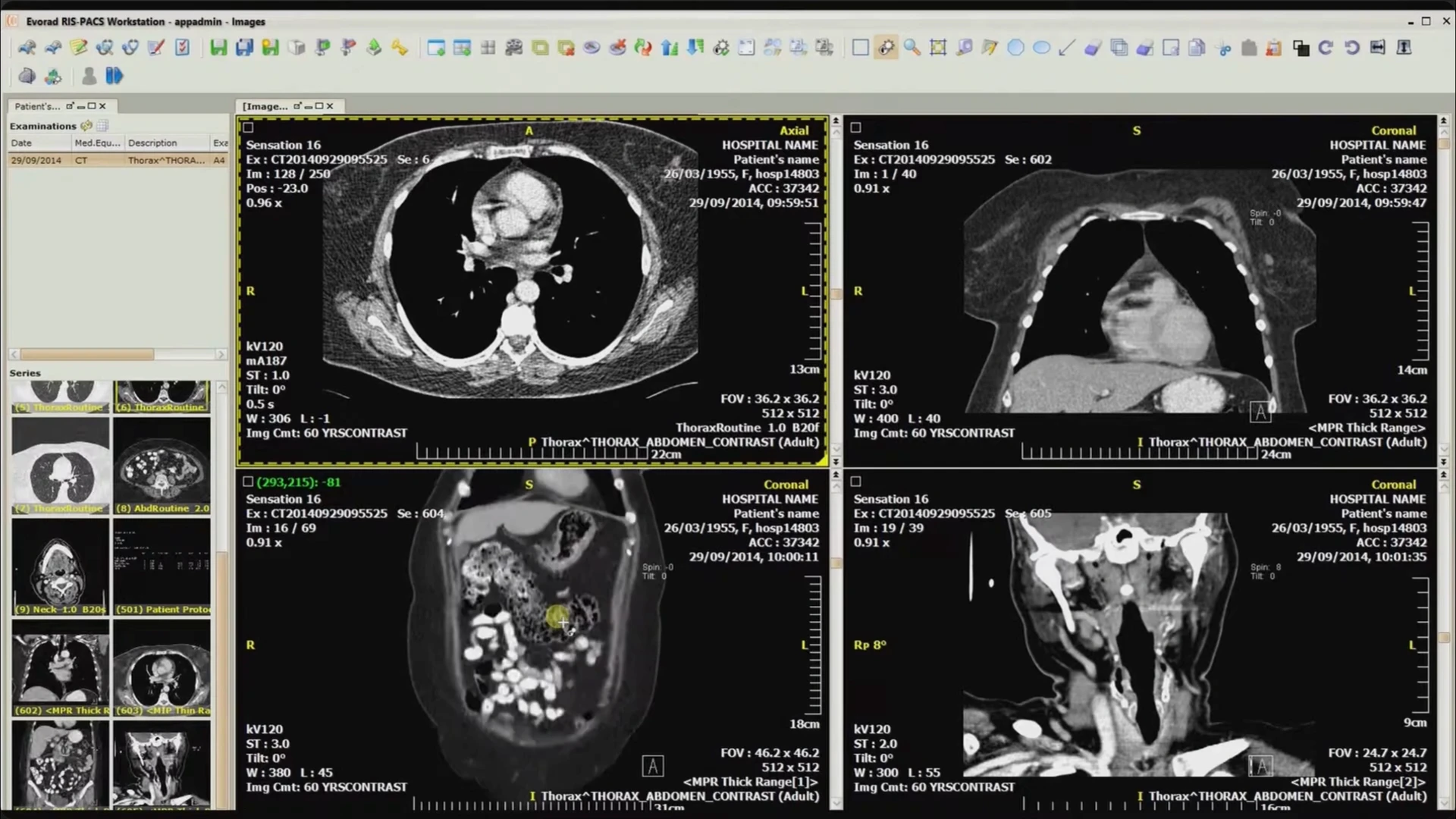
Several views open together, 02:23. The screenshot illustrates the comparison layout. The wider synchronization behavior comes from the workstation documentation.
Measurements and annotations
Measurements and annotations were part of the diagnostic workspace. The video shows a distance measurement, an angle, and a region of interest with a statistics readout. These stay visible over the image rather than requiring a separate analysis screen. 1
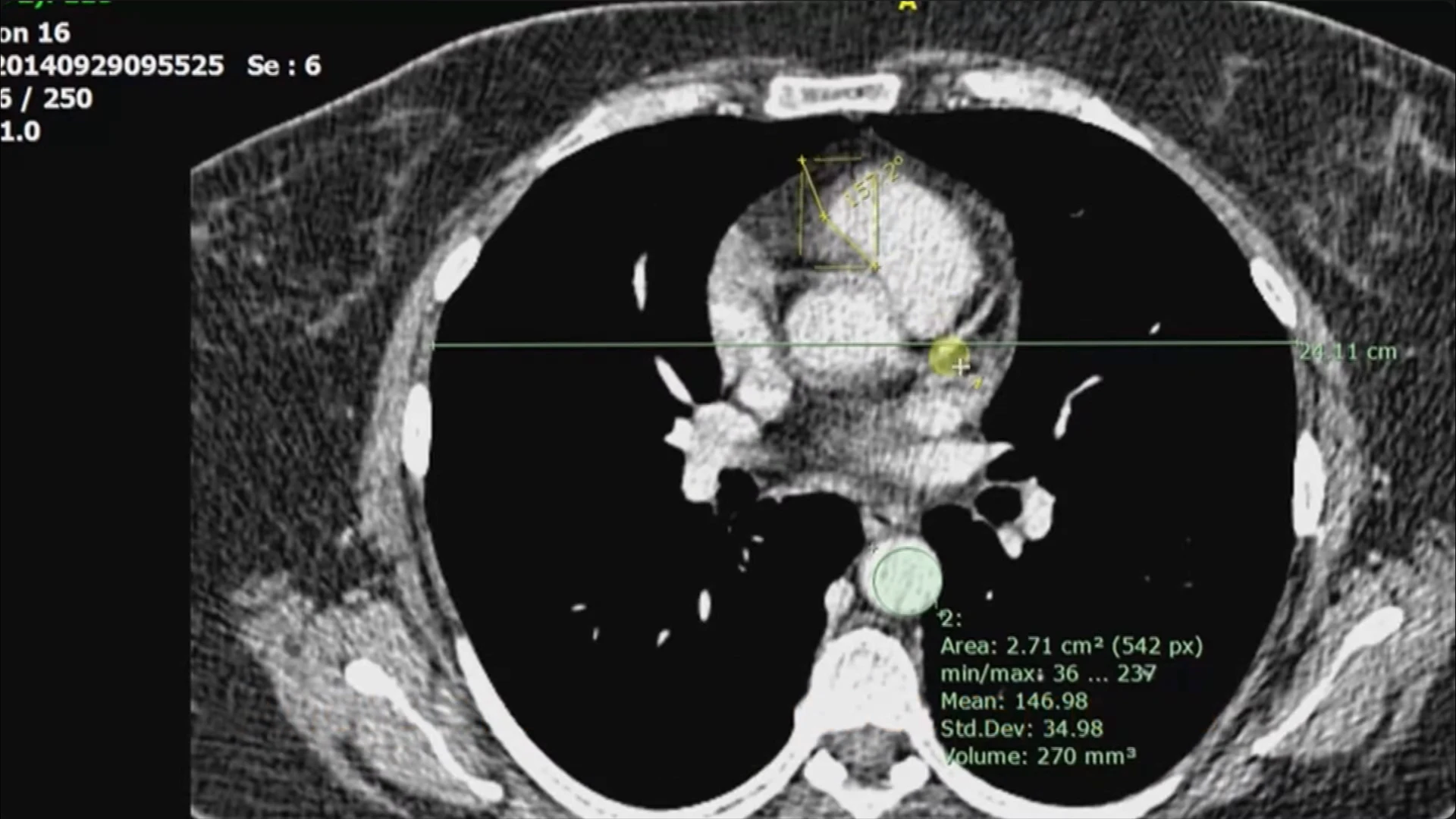
Distance, angle, and region-of-interest measurements, 02:38. The recording includes a close-up of the measurement tools.
The documented tools included calibrated distance and angle measurements, rectangular and elliptical regions, polygonal and freeform regions, arrows, and text annotations. ROI statistics included minimum, maximum, and mean values, standard deviation, pixel or voxel count, area, and volume where applicable. 2, pp. 22–24; 3, pp. 12–13
Users could move and modify measurements, reposition their labels, copy annotations between selected images, show or hide them, and save them. The guide explicitly describes measurements and annotations as separate entities that do not alter the underlying DICOM files. 2, pp. 22–24
Reporting and dictation
The walkthrough ends by opening a diagnosis editor over a chest radiograph. Its controls include templates, formatting, preview, printing, and a diagnosed-state option. The report remains connected to the examination being reviewed. 1
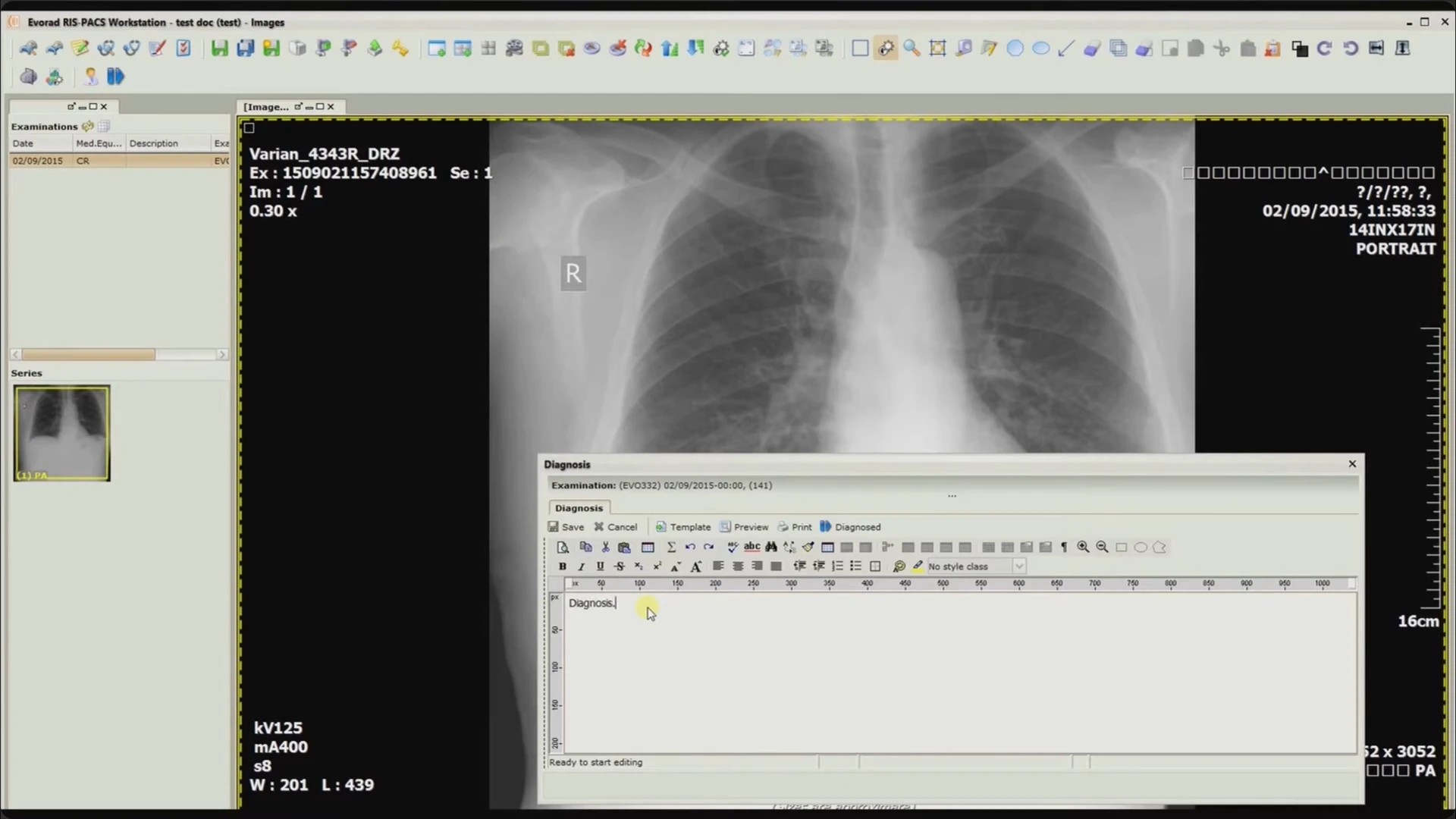
The diagnosis editor, 02:51.
The archived product description adds voice recording attached to examinations, playback while transcribing, optional speech-recognition integration, and copying text from an external word processor. Reports formed part of the examination record and supported full-text searching with complete or partial keywords.
The technical specification also lists report templates, common-phrase shortcuts, generated patient and organization headers, and spell checking. These are documented reporting options. The video itself shows the editor, rather than a complete dictation or speech-recognition session. 3, p. 8
Printing, export, and patient media
The software supported both digital handover and printed output. Users could export selected patients or examinations, send images to another DICOM storage provider, or save image files in formats such as DICOM, PNG, and JPEG. Images could also go to the clipboard for use in other applications. 2, pp. 12–14, 24; 3, p. 13
The workstation could package examinations with an Evorad viewer in a folder or on CD/DVD. That provided a way to distribute images beyond the hospital installation. The historical guide specifies an external disc-burning dependency for that release, so this should be understood as an archival workflow rather than a claim about compatibility with current systems. 2, pp. 13–14
Printing used a shared layout environment for conventional paper and DICOM film printers. Users could print the current image grid or assemble a dedicated printing tab, gather images from different series, adjust their presentation, and select page or film settings. The documentation includes orientation, size, resolution, and multi-page navigation. Print jobs ran in the background and reported completion or failure. 2, pp. 27–30; 3, p. 14
Teleradiology and distributed access
Remote access was part of the product architecture. An Evorad workstation could connect to multiple servers and switch between a remote system and its own local database. The documentation describes both standalone and web-launched workstation editions, with access controlled by the user’s permissions. 2, pp. 6–8; 3, pp. 16–17; 4
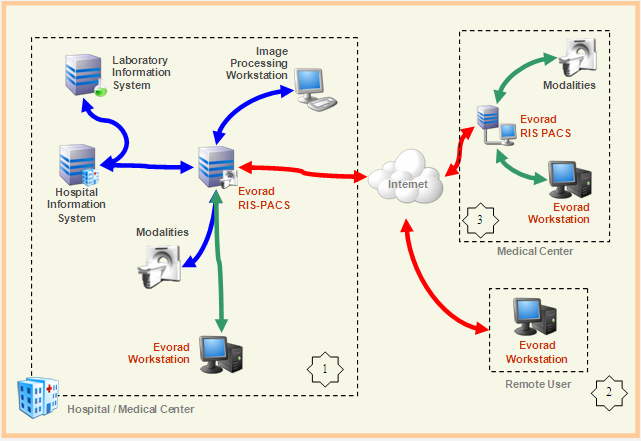
Original architecture illustration from the archived Evorad marketing website. It depicts local systems, remote users, and a cooperating medical center.
The technical documentation describes HTTP or HTTPS communication between workstations and servers, with DICOM communication between the server and modalities. It also describes the server mediating remote query/retrieve requests while the modality remains on a private network. 3, pp. 14–17
For image transfer, the archive describes lossless compression, optional lossy previews, and a local workstation cache. A lossy preview carried a visual indication and allowed retrieval of the original image. These are documented mechanisms for remote reading and managing network traffic. The demonstration’s loading-speed captions do not provide a controlled benchmark or a guaranteed transfer time. 3, pp. 10–11
Storage and archiving
The PACS architecture separated active diagnostic access from longer-term retention. The technical document describes several storage levels, with the actual hardware and enabled levels depending on the deployment. 3, pp. 9–10
| Storage level | Documented role |
|---|---|
| Short-term online storage | Recent examinations and their images, supporting the active reporting cycle. |
| Medium-term online storage | Historical images retained for online access, with the retention period set by the administrator. |
| Long-term or nearline storage | Backup and extended archiving, including tape or optical-media arrangements described for that period. |
| Disaster-recovery storage | A separate copy of patient, examination, and image information, potentially at another location. |
The materials discuss direct-attached storage, network-attached storage, and storage-area networks. They also describe original DICOM preservation with lossless compression and optional lossy storage configurations. Those choices were deployment decisions, not interchangeable claims about the contents of every archive. 3, pp. 9–10
Security and system administration
The historical security model combined authentication, roles, groups, department associations, and audit trails. The brochure describes fine-grained authorization extending from access to a function down to viewing or editing particular information fields. It also describes internal authentication and external directory services, with encryption options for storage and transfer. 4
The sample technical offer makes the configuration distinction explicit: it selects internal authentication and audit logging, lists Active Directory and LDAP integration separately, and marks network encryption as activated on demand. These documents establish available mechanisms and configuration choices, not a claim that every installation enabled every control. 3, pp. 6–7
Administrators had a separate interface for managing users, groups, roles, and rights, reviewing audit information, inspecting connected users, and disconnecting sessions. They could also monitor scheduled and running server processes, stop long-running jobs, and review completed or failed operations. The specification describes administrative scripts for configuration and data import or export while the server remained in operation. 3, p. 15
Department statistics and management information
The marketing materials describe statistical and business-intelligence functions alongside clinical workflow. Managers could review filtered tables and charts, financial information, and resource performance to examine departmental activity and identify bottlenecks. The brochure presents this as collective information analysis for management decisions. 4
The recorded demonstration does not show these reporting screens. Their inclusion here reflects the documented scope of the RIS product rather than a dashboard demonstrated in the video.
Research PACS and custom image processing
Research PACS extended the same environment so researchers could work with examinations already held in the system. The 2009 brochure describes deployment as a primary clinical and research PACS, a secondary system alongside another vendor’s PACS, or a system shared across cooperating organizations. 4
Its documented capabilities included:
- MATLAB exchange: send individual images or series as two- or three-dimensional matrices, then bring calculated arrays back as images or series.
- Custom image processors: develop parameterized algorithms and apply them from the workstation. The archived website describes Java and MATLAB, while the 2009 brochure also names Java/C development with an Eclipse-based environment.
- Algorithm iteration: reload changed processors and retest them within the current examination, then make them available to authorized users.
- Measurement export: accumulate ROI measurements and selected patient or examination fields in spreadsheets for further analysis.
- Research projects: group patients and examinations so they could be found and processed together.
- Repeated processing: save combinations of processing and import/export actions for application across examinations, as described in the archived Research PACS website.
Research PACS connected algorithm development to the examination workflow: a researcher could test a technique on existing studies, retain its results with an examination, and make the processor available through the workstation’s familiar tools. 4
One examination across the workflow
The product’s common structure was the connection between a patient, an examination, its image series, and its report. Scheduling, DICOM acquisition, viewing, reconstruction, measurements, and reporting all operated around those linked records. Remote workstations and research extensions reused that structure instead of requiring each activity to begin with an unrelated set of image files.
The walkthrough makes the clinical workspace visible. The accompanying archive shows the wider engineering scope: workflow and permissions around the images, integration with hospital equipment and systems, configurable storage and remote access, and tools for extending the processing environment.
Sources
- Original Evorad product walkthrough, approximately 2 minutes 56 seconds, linked from this website’s Evorad project page. The screenshot captions identify exact extraction times. The recording’s publication date and product version are not established by the file.
- Evorad Workstation — Quick Start Guide (PDF). Page references use the guide’s printed page numbers. Primary source for workstation operation, image tools, reconstruction, export, printing, DICOM configuration, and hanging protocols.
- Evorad RIS-PACS 2 — Solution Configuration (PDF), July 25, 2008. Primary source for detailed functionality, architecture, storage, and configuration distinctions. A sample offer, not a statement that every listed option was included in every installation.
- Evorad ECR 2009 brochure (PDF). Primary source for the product-family overview, teleradiology, visualization, and research capabilities.
These are historical first-party materials. Features described only in documentation are distinguished from actions visible in the walkthrough.